SmartVend Documentation
SmartVend is an enterprise-grade stock management and point-of-sale system for businesses that sell physical goods — retail chains, wholesale distributors, food producers, and multi-branch SMEs. Manage inventory, sales, purchases, finances, and TRA/VFD tax compliance from one platform across all your warehouse locations — with full double-entry accounting and a complete audit trail.
Dashboard
KPIs & charts
Products
Catalog & stock
Sales
Invoices & payments
POS
Point of Sale
Purchases
Supplier orders
Clients
Customers & suppliers
VFD / TRA
Tax compliance
Reports
Analytics & exports
Warehouses
Multi-location stock
Users & Roles
Access control
Expenses
Cost tracking
Accounts
Chart of accounts
Transfers
Inter-warehouse
PO & GRN
Receiving goods
Adjustments
Stock corrections
Collections
Cash tracking
Audit Logs
Activity trail
Settings
System config
Who Is This System For?
SmartVend is built for any business that buys, stocks, and sells physical goods — from a single-location shop to a multi-branch enterprise. If you need to track inventory, invoice customers, pay suppliers, reconcile cash, and produce financial reports, SmartVend gives you one integrated platform to do it all.
Business Types
- Retail chains & branches — multiple store locations with shared catalog, combined reporting, and per-branch stock control
- Wholesale & distribution — bulk invoicing for corporate buyers, credit limits, receivables aging, and supplier payment tracking
- Food & FMCG businesses — perishable stock alerts, batch receiving via GRN, product variants, and promotional pricing
- Manufacturing with a sales arm — receive raw materials via GRN, track finished goods, sell via invoices or POS counter
- Service businesses selling products — pharmacies, clinics, repair shops that stock and sell retail items alongside services
Roles That Benefit Most
- Business owners — live profit, stock value, and outstanding balances from any device, any time
- Accountants & finance teams — automatic double-entry journals, P&L statements, and chart of accounts — no manual bookkeeping
- Warehouse managers — approve stock movements, run physical counts, control transfers and adjustments
- Sales staff — create invoices, record payments, send documents by email or SMS with one click
- Cashiers — fast POS checkout with barcode scanning, split payments, and automatic tax receipt generation
Key Problems SmartVend Solves
| Problem | How SmartVend Fixes It |
|---|---|
| "I don't know how much stock I have at each branch" | Real-time per-warehouse stock levels, low-stock alerts, and full stock movement history per product |
| "Customers owe me money and I lose track" | Client statements, credit limits, aging balances, and one-click payment recording |
| "I can't trust my staff without visibility" | Every action is logged with the user's name, IP address, and before/after values — tamper-evident audit trail |
| "My bookkeeper charges a lot for basic journals" | Every transaction auto-posts double-entry journal entries — no external accounting software required |
| "Tax receipts take too long or I miss submissions" | VFD/TRA receipts submitted in real time on every POS sale and invoice |
| "Moving stock between branches is disorganised" | Multi-step transfer workflow — stock only moves when both ends confirm; full status trail |
| "Staff can see things they shouldn't" | Granular role-based permissions — cashiers see only POS; accountants see only finance; managers control everything |
| Branch | Code | Role in Business | Typical Daily Volume |
|---|---|---|---|
| Main Warehouse | MAIN | Central hub — primary receiving, wholesale dispatch, finance control | 20–50 invoices, GRNs, supplier payments |
| North Branch | NORTH | Retail outlet — walk-in counter and local B2B customers | 30–80 POS transactions, cash collections |
| South Branch | SOUTH | Retail counter and area wholesale delivery | 25–60 POS transactions, stock transfers in |
| East Depot | EAST | Regional depot — restocked weekly from main warehouse via transfers | 10–30 wholesale invoices |
Architecture
Backend
- Laravel 10 (PHP 8.1+) REST API
- Laravel Passport OAuth2 authentication
- MySQL database with soft deletes
- Policy-based authorization (48 policies)
- Double-entry accounting engine
- Rate limiting: 120 req/min per user
Frontend
- Vue.js 2.7 Single Page Application
- Vuex state management
- Bootstrap Vue UI components
- Axios HTTP (30s timeout)
- Laravel Mix (webpack) build
- HTML5 History mode routing
Warehouses
| Code | Name | Location |
|---|---|---|
MAIN | Main Warehouse | City Centre |
NORTH | North Branch | Northern District |
SOUTH | South Branch | Southern District |
EAST | East Depot | Eastern Region |
Integrations
- VFD API (vfd.co.tz) — TRA tax receipts
- SMS Gateway — Notifications
- WhatsApp — Document sharing
- Email SMTP — Automated emails
Installation & Setup
Follow these steps to install SmartVend on your server.
Requirements
| Component | Version | Notes |
|---|---|---|
| PHP | 8.1+ | BCMath, Ctype, JSON, Mbstring, OpenSSL, PDO, Tokenizer, XML |
| MySQL | 8.0+ | Or MariaDB 10.4+ |
| Composer | 2.x | PHP dependency manager |
| Web Server | Nginx / Apache | Point document root to /public |
Installation Steps
Upload Files
Extract the SmartVend package to your server (e.g. /var/www/smartvend) and install PHP dependencies:
composer install --optimize-autoloader --no-dev
Configure Environment
cp .env.example .env
php artisan key:generate
Edit .env — set DB_HOST, DB_DATABASE, DB_USERNAME, DB_PASSWORD, APP_URL.
Database Setup
php artisan migrate
php artisan db:seed
php artisan passport:install
Finalize
php artisan storage:link
chmod -R 775 storage bootstrap/cache
php artisan config:cache && php artisan route:cache
Web-Based Setup Wizard
Access /setup in your browser after uploading the files for a guided installation without the command line.
Database Connection
Enter database host, port, name, username, and password. Use Test Connection to verify.
Application URL
Set APP_URL (e.g. https://yourdomain.com) and select environment.
Migrate & Seed
The wizard runs migrations, seeds, and passport install automatically.
Admin Account
Set name, email, and password for the initial Super Admin.
Done
The wizard writes .env, clears caches, and redirects to the login page.
Updating SmartVend
When a new version is available, a notification appears in the top bar. Apply it via /update in the browser, or via command line:
composer install --optimize-autoloader --no-dev
php artisan migrate
php artisan config:cache && php artisan route:cache && php artisan view:cache
Login & Access
SmartVend uses OAuth2 token-based authentication via Laravel Passport. Every API call requires a Bearer token. The Vue.js frontend handles token storage and renewal automatically.
Figure 1 — Login page
Default Admin Account
| Field | Value |
|---|---|
admin@example.com | |
| Password | password — change immediately |
| Role | Super Admin (bypasses all permission checks) |
How Authentication Works
User submits credentials
The login form sends the email and password to POST /api/getAccessToken along with the OAuth2 client credentials (client_id + client_secret from the oauth_clients table).
Server returns access token
Laravel Passport validates credentials and returns a Bearer token with a 1-year expiry. The token is stored in the browser's localStorage under access_token.
Token attached to every request
Axios is configured globally with Authorization: Bearer <token>. If the server returns 401, the frontend clears localStorage and redirects to the login page.
Permissions loaded on login
After token is obtained, the frontend fetches the user's profile and permissions. Navigation menus and action buttons are conditionally rendered based on what permissions the user holds.
Password Reset
API Endpoints
| Method | Endpoint | Description |
|---|---|---|
| POST | /api/password/create | Send reset link to the provided email address |
| GET | /api/password/find/{token} | Validate a reset token before showing the form |
| POST | /api/password/reset | Set new password using a valid token |
| POST | /api/logout | Revoke the current access token (server-side) |
Account Security
| Feature | Details |
|---|---|
| Login rate limiting | 5 attempts per minute per IP. Exceeding this returns 429 Too Many Requests. |
| Is_Active check | Every authenticated request checks that the user's is_active flag is 1. Deactivated users receive 403 immediately without touching any business logic. |
| Token revocation | Logout calls POST /api/logout which deletes the token from oauth_access_tokens. Old tokens cannot be reused after logout. |
| Security headers | All responses include X-Content-Type-Options: nosniff, X-Frame-Options: SAMEORIGIN, and Referrer-Policy: strict-origin via the SecurityHeaders middleware. |
Dashboard
Real-time business performance overview across all warehouses. The dashboard is the first screen after login and provides at-a-glance KPIs, trend charts, and alerts without running individual reports.
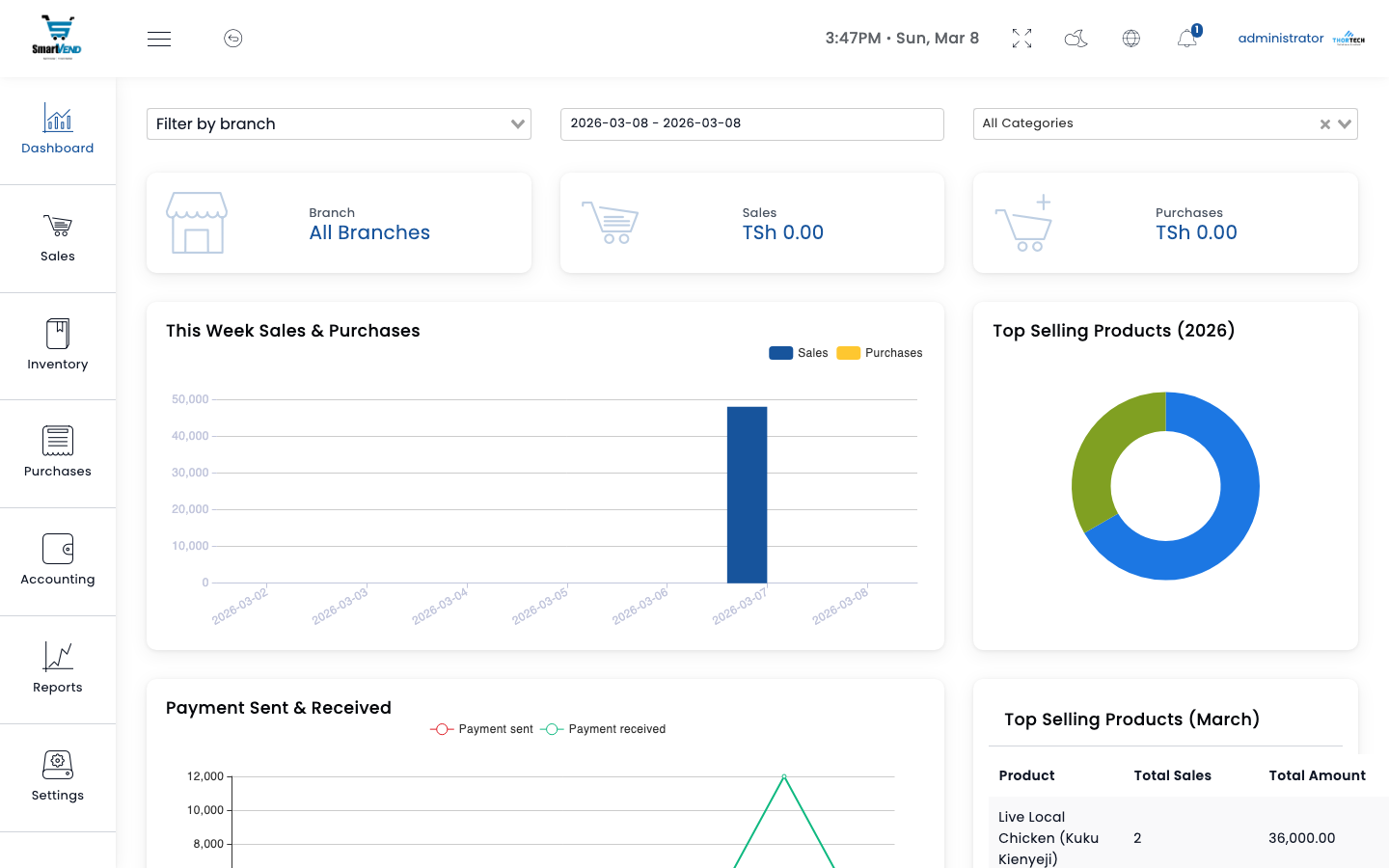
Figure 2 — Main dashboard
KPI Cards
The four KPI cards at the top of the dashboard summarise the current period's financial performance. They update whenever you change the date range filter.
| Widget | How It's Calculated | Example Value |
|---|---|---|
| Total Sales | Sum of all confirmed sale invoice grand totals for the selected period | TZS 4,850,000 |
| Total Purchases | Sum of all purchase invoice grand totals (goods received from suppliers) | TZS 2,340,000 |
| Total Expenses | Sum of all approved expense records for the period | TZS 480,000 |
| Total Profit | Sales Total − Purchases Total − Expenses Total | TZS 2,030,000 |
Charts & Visual Panels
| Panel | Description | Interaction |
|---|---|---|
| Sales & Purchases Chart | Dual line chart comparing daily sales revenue vs purchase costs over the selected period | Hover to see exact values per day |
| Top Selling Products | Bar chart or ranked list of products by revenue in the period — shows which items drive the most income | Click a product to open its detail page |
| Recent Sales | Last 10 confirmed sales with client name, reference, total, and payment status badge | Click a row to open the sale |
| Payment Methods Chart | Doughnut chart showing the split between cash, bank transfer, and other payment methods | Hover segments for percentages |
| Low Stock Alerts | List of products whose current stock is below the configured minimum reorder level at any warehouse | Click to navigate to the product |
| Recent Purchases | Last 10 purchase invoices with supplier, reference, and payment status | Click a row to open the purchase |
Filtering the Dashboard
Use the date range picker in the top-right of the dashboard to change the reporting period. All KPI cards and charts update simultaneously.
| Filter | Effect |
|---|---|
| Date Range (Start / End) | Limits all KPIs and charts to transactions within the chosen dates |
| Warehouse Filter | When set, restricts data to a single warehouse location (e.g. Main Warehouse only) |
| Default Period | Current month — from the 1st of the month to today |
GET /api/dashboard_data with optional ?start_date=, ?end_date=, and ?warehouse_id= query parameters.Low Stock Alerts Explained
The dashboard flags products that have fallen below their configured Minimum Alert quantity. This helps purchasing staff know what to reorder before stock runs out.
| Product | Warehouse | Current Stock | Min Alert | Status |
|---|---|---|---|---|
| Product A | NORTH | 45 Kg | 50 Kg | Low |
| Product B | SOUTH | 0 Kg | 20 Kg | Out of Stock |
Navigate to Products → Stock Alerts or Reports → Low Stock for the full alert list with warehouse breakdown.
Products & Inventory
Manage your full product catalog, variants, barcodes, and real-time stock levels across all warehouse locations.
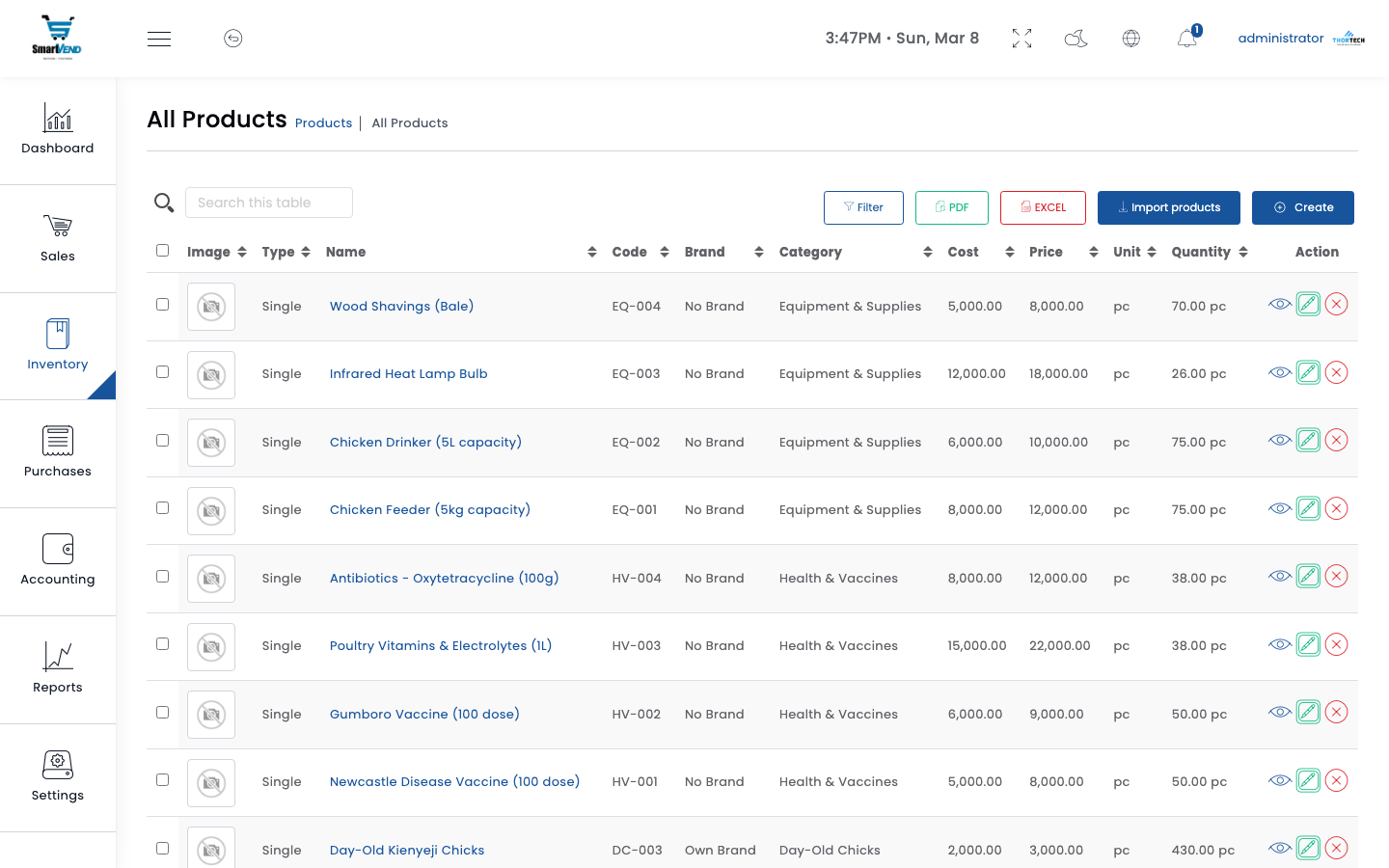
Products list — filterable by category, brand, warehouse, and stock status
Product Fields
| Field | Example Value | Notes |
|---|---|---|
| Product Name | Broiler Chicken (Dressed) | Displayed on invoices and POS |
| Code / SKU | CHK-001 | Unique identifier, auto-generated or manual |
| Category | Fresh Poultry | Hierarchical (parent → sub-category) |
| Brand | Interchick | Optional — used for filtering |
| Base Unit | Kg | Primary measurement unit |
| Sub-unit | Piece = 1.8 Kg | Alternative selling unit with conversion factor |
| Cost Price | TZS 9,500 / Kg | Used for profit calculation |
| Selling Price | TZS 12,500 / Kg | Default retail price |
| Minimum Alert | 50 Kg | Triggers low-stock alert when below this level |
| Tax Method | Inclusive / Exclusive | Whether price includes VAT or not |
| Barcode | 5901234123457 | EAN-13 or custom; scanned at POS |
| Note | Keep refrigerated | Internal product note |
Product Variants
Variants allow one product to have multiple SKUs — e.g. Broiler Chicken sold in Small (under 1.5Kg), Medium (1.5–1.8Kg), and Large (over 1.8Kg) weight classes, each with its own barcode and price.
| Variant | SKU | Barcode | Price |
|---|---|---|---|
| Small (<1.5Kg) | CHK-001-S | 5901234123457 | TZS 11,000/Kg |
| Medium (1.5–1.8Kg) | CHK-001-M | 5901234123464 | TZS 12,500/Kg |
| Large (>1.8Kg) | CHK-001-L | 5901234123471 | TZS 13,500/Kg |
Promotional Offers
Set time-limited or quantity-based promotional prices. The POS automatically applies the offer price when conditions are met.
| Field | Example | Behaviour |
|---|---|---|
| Offer Price | TZS 11,000 / Kg | Applied instead of standard selling price |
| Min Quantity | 10 Kg | Offer only activates above this quantity |
| Start Date | 2026-03-01 | Offer inactive before this date |
| End Date | 2026-03-31 | Offer expires after this date |
Combo / Package Products
Bundle multiple products into a single sellable package. When a package is sold, each component's stock is decremented individually.
| Component | Quantity |
|---|---|
| Broiler Chicken (Dressed) | 2 Kg |
| Chicken Wings | 0.5 Kg |
| Chicken Livers | 0.25 Kg |
Stock Per Warehouse
Stock quantities are tracked independently per warehouse. The product detail page shows current quantity, reserved quantity, and the reorder level for each location.
| Warehouse | Current Stock | Reserved | Available | Reorder Level | Status |
|---|---|---|---|---|---|
| MAIN | 320 Kg | 25 Kg | 295 Kg | 50 Kg | OK |
| NORTH | 45 Kg | 0 Kg | 45 Kg | 50 Kg | Low |
| SOUTH | 0 Kg | 0 Kg | 0 Kg | 30 Kg | Out of Stock |
Barcodes & CSV Import
Barcode Labels
- Generate EAN-13 or Code-128 barcodes per product
- Print label sheets (multiple labels per page)
- Labels include product name, price, and barcode — navigate to Products → Barcode
CSV Import — Column Reference
Upload a CSV or Excel file at Products → Import. Column headers are case-insensitive; common aliases are accepted (e.g. "SKU" for code, "Selling Price" for price).
| Column | Required | Example | Notes |
|---|---|---|---|
name | Yes | Broiler Chicken (Dressed) | Product display name |
code | Yes | SKU-0042 | Unique SKU / barcode value. Import fails if code already exists. |
category | Yes | Poultry | Category name — created automatically if it does not exist |
cost | Yes | 8000 | Purchase / cost price (numeric, no commas) |
price | Yes | 12500 | Selling price (numeric, no commas) |
unit | Yes | Kg | Must match an existing unit short name or full name in Catalog → Units |
brand | No | Local Farm | Brand name — created automatically if it does not exist. Leave blank or use "N/A" to skip. |
stock_alert | No | 20 | Minimum quantity before low-stock alert fires. Defaults to 0. |
note | No | Keep refrigerated | Internal product note |
API Endpoints
| Method | Endpoint | Description |
|---|---|---|
| GET | /api/products | List products (paginated, search, filter by category/brand/warehouse) |
| POST | /api/products | Create product |
| GET | /api/products/{id} | Product detail with all variants and stock |
| PUT | /api/products/{id} | Update product |
| DELETE | /api/products/{id} | Soft-delete product |
| GET | /api/get_Products_by_warehouse/{warehouseId} | Products with stock for a specific warehouse |
| GET | /api/get_products_stock_alerts | Products below reorder level |
| GET | /api/packages | List combo / package products |
| POST | /api/products/import/csv | Bulk import from CSV |
| POST | /api/products/delete/by_selection | Bulk delete selected product IDs |
Sales
Create and manage sales invoices, record multiple partial payments, send documents by email/SMS, and submit to VFD for TRA tax compliance.
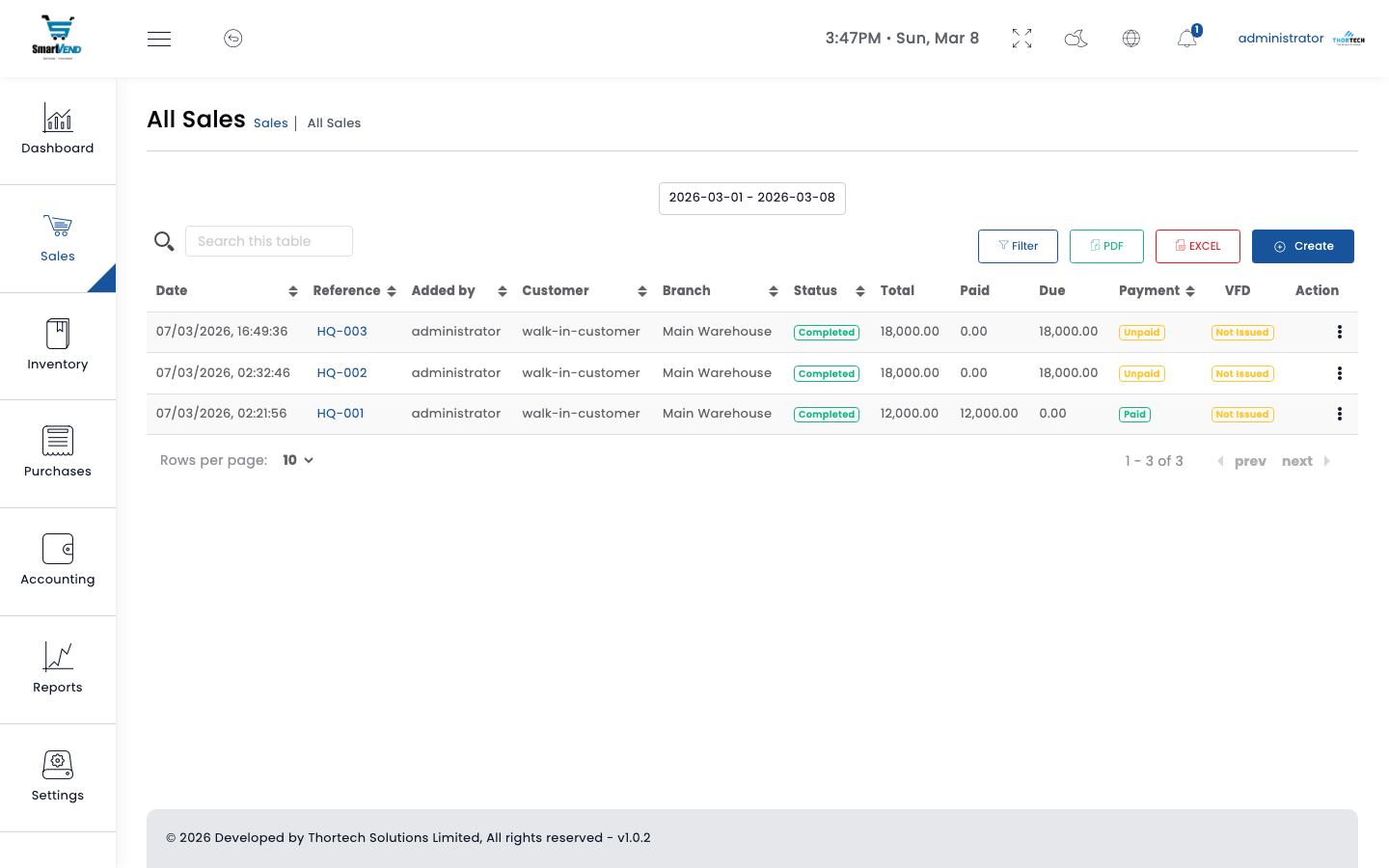
Sales list with search & date filter
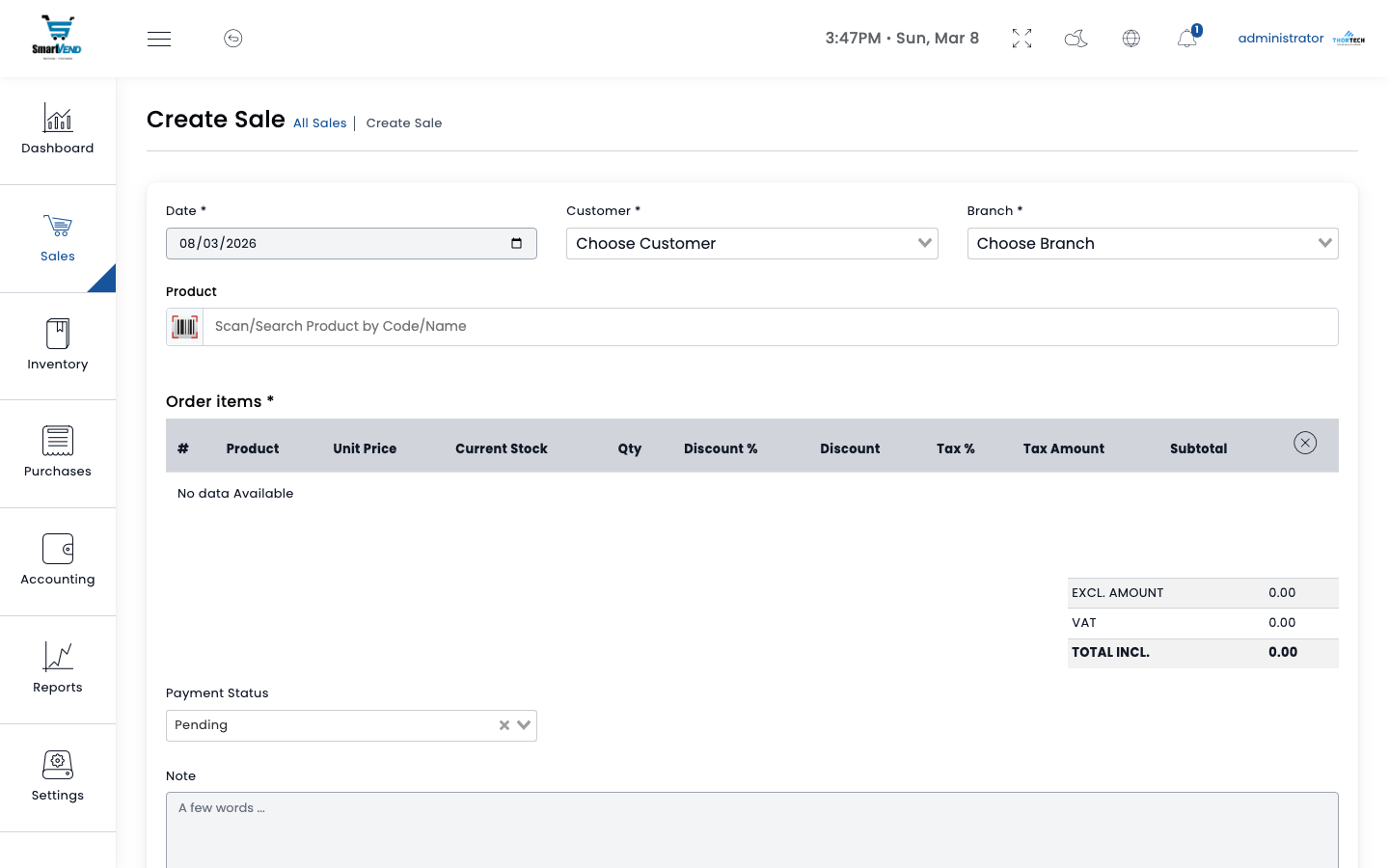
Create sale form
Sale Workflow
Sale Fields
| Field | Example | Notes |
|---|---|---|
| Reference | SL-MAIN-20260308-001 | Auto-generated: warehouse code + date + sequence |
| Client | City Mart Traders Ltd | Optional — use walk-in customer for cash sales |
| Warehouse | Main Warehouse | Stock deducted from this location |
| Date | 08 March 2026 | Sale date; defaults to today |
| Discount (%) | 5% | Header-level discount on grand total |
| Tax | 18% VAT (inclusive) | Configurable per product or header |
| Shipping | TZS 5,000 | Optional delivery charge added to total |
| Payment Method | Bank Transfer / Cash / Cheque | Linked to an account in chart of accounts |
| Notes | Deliver to cold storage B2 | Printed on invoice PDF |
Example Sale
| Field | Value |
|---|---|
| Reference | SL-MAIN-20260308-001 |
| Client | City Mart Traders Ltd |
| Warehouse | Main Warehouse |
| Date | 08 March 2026 |
| Items | Broiler Chicken (Dressed) × 25 Kg @ TZS 12,500 = TZS 312,500 |
| Tax (18% VAT incl.) | TZS 47,839 |
| Grand Total | TZS 312,500 |
| Paid | TZS 200,000 (Bank Transfer — CRDB) |
| Balance Due | TZS 112,500 |
| Payment Status | Partial |
Payment Statuses
| Status | Condition | Action Available |
|---|---|---|
| Paid | Total paid ≥ Grand Total | Download PDF, Submit VFD |
| Partial | 0 < Paid < Grand Total | Record additional payment |
| Unpaid | No payment recorded | Record first payment |
Sending Documents
| Channel | What is Sent | API Endpoint |
|---|---|---|
| PDF invoice attached to email | POST /api/sales_send_email | |
| SMS | Customizable SMS message with total and reference | POST /api/sales_send_sms |
| Message with invoice link | POST /api/sales_send_whatsapp |
API Endpoints
| Method | Endpoint | Description |
|---|---|---|
| GET | /api/sales | List sales (paginated, search, filter by warehouse/date/status) |
| POST | /api/sales | Create new sale with line items |
| GET | /api/sales/{id} | Full sale details with line items |
| PUT | /api/sales/{id} | Update sale |
| DELETE | /api/sales/{id} | Delete sale (soft-delete) |
| GET | /api/get_payments_by_sale/{id} | All payments recorded against a sale |
| GET | /api/convert_to_sale_data/{quotationId} | Load quotation data to pre-fill new sale form |
| GET | /api/sale_pdf/{id} | Download sale PDF |
| GET | /api/sales_print_invoice/{id} | Printable invoice view |
| GET | /api/sales/{id}/preview-vfd | Preview VFD receipt before submission |
| POST | /api/sales/{id}/resubmit-vfd | Resubmit failed VFD receipt |
| POST | /api/sales_delete_by_selection | Bulk delete selected sale IDs |
Point of Sale (POS)
Fast retail terminal designed for high-volume counter sales. Supports barcode scanning, split payment, draft orders, shift management, and automatic VFD receipt generation.
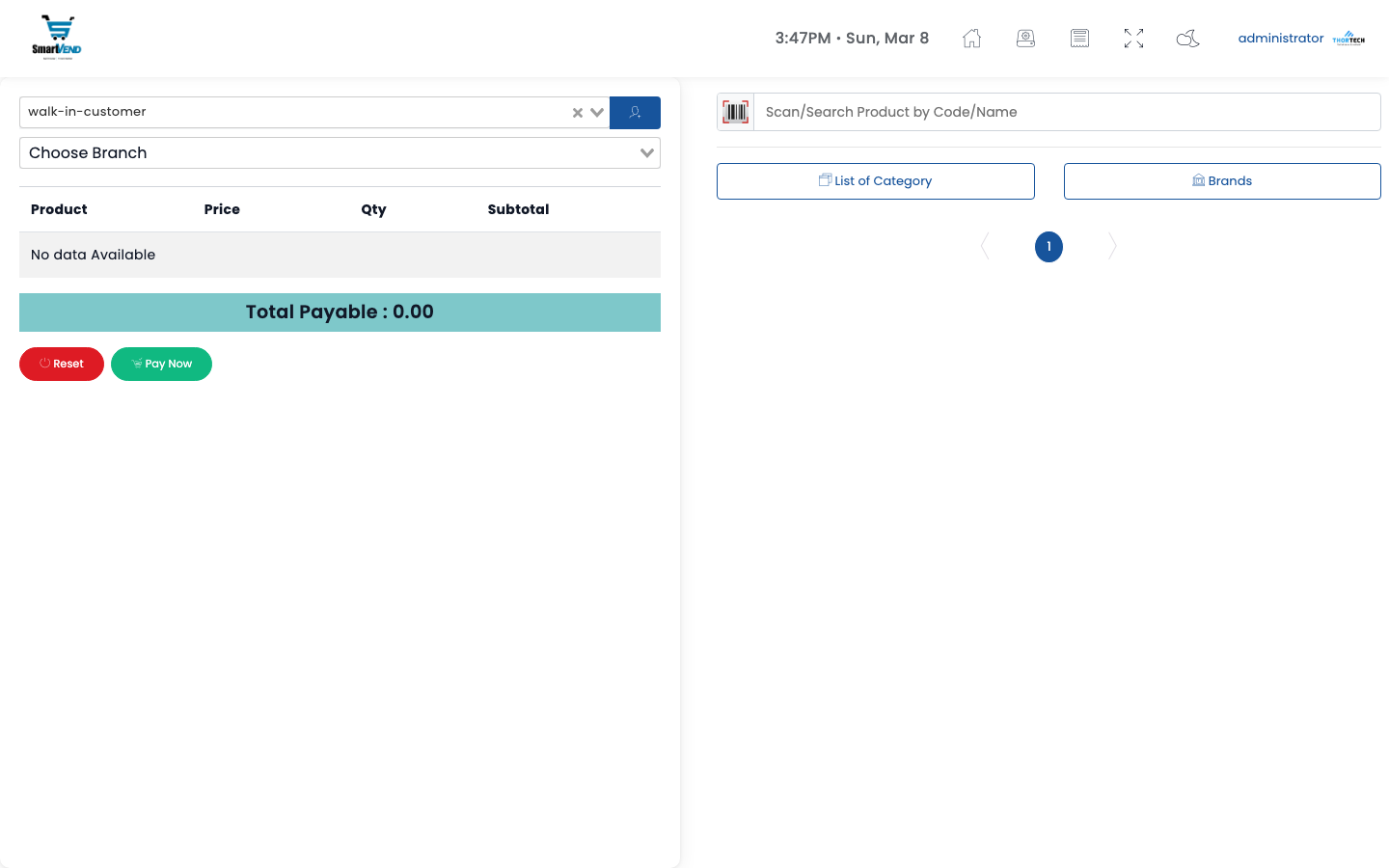
POS terminal — product search, cart, and payment panel
POS Features
Product Entry
- Barcode scanner — USB HID or device camera
- Search by name, SKU, or barcode
- Audible beep on successful scan
- Offer / promo price auto-applied
- Manual quantity and unit price override
- Per-line discount
Payment & Receipts
- Split payment: cash + bank transfer in one transaction
- Cash change calculator with on-screen numpad
- Customer selection for credit sales
- VFD receipt auto-submitted on checkout
- Thermal print receipt (A4 or 80mm roll)
- Save draft and resume later
POS Transaction Workflow
Shift Sessions
Shifts track a cashier's working session — the opening cash float, all sales made, and the closing cash count. A manager reviews and approves or rejects the session at end of day.
| Shift Status | Meaning | Next Action |
|---|---|---|
| Active | Shift is currently open; cashier can process sales | End shift when done |
| Pending Approval | Cashier has ended the shift; manager review needed | Manager approves or rejects |
| Approved | Manager confirmed the closing figures | Archive / report |
| Rejected | Discrepancy found; cashier must explain | Investigate and resubmit |
| Field | Value |
|---|---|
| Cashier | Jane Smith |
| Warehouse | Main Warehouse |
| Open Time | 08:00 — 08 Mar 2026 |
| Close Time | 17:00 — 08 Mar 2026 |
| Opening Float | TZS 50,000 |
| Total Sales | TZS 284,500 (23 transactions) |
| Expected Cash | TZS 334,500 |
| Counted Cash | TZS 332,000 |
| Variance | –TZS 2,500 |
| Status | Pending Approval |
Draft Sales (Hold & Resume)
Save an in-progress cart as a draft to serve another customer. Drafts are stored per user and can be resumed at any time.
| Action | Endpoint |
|---|---|
| Save current cart as draft | POST /api/pos/create_draft |
| List all saved drafts | GET /api/get_draft_sales |
| Load draft into POS | GET /api/pos/data_draft_convert_sale/{id} |
| Submit draft as final sale | POST /api/pos/submit_sale_from_draft |
| Delete a draft | DELETE /api/remove_draft_sale/{id} |
API Endpoints
| Method | Endpoint | Description |
|---|---|---|
| POST | /api/pos/create_pos | Complete a POS checkout transaction |
| GET | /api/pos/get_products_pos | Products available at active shift warehouse |
| GET | /api/pos/data_create_pos | POS setup data: settings, accounts, customers |
| GET | /api/shift-sessions/current | Get current active shift for the logged-in user |
| POST | /api/shift-sessions/start | Open a new shift (cashier enters opening float) |
| POST | /api/shift-sessions/end | Close the current shift (enter closing cash count) |
| POST | /api/shift-sessions/approve | Manager approves a closed shift |
| POST | /api/shift-sessions/reject | Manager rejects a closed shift |
Purchases
Record supplier invoices, track payments, manage purchase returns, and import bulk purchases via CSV.
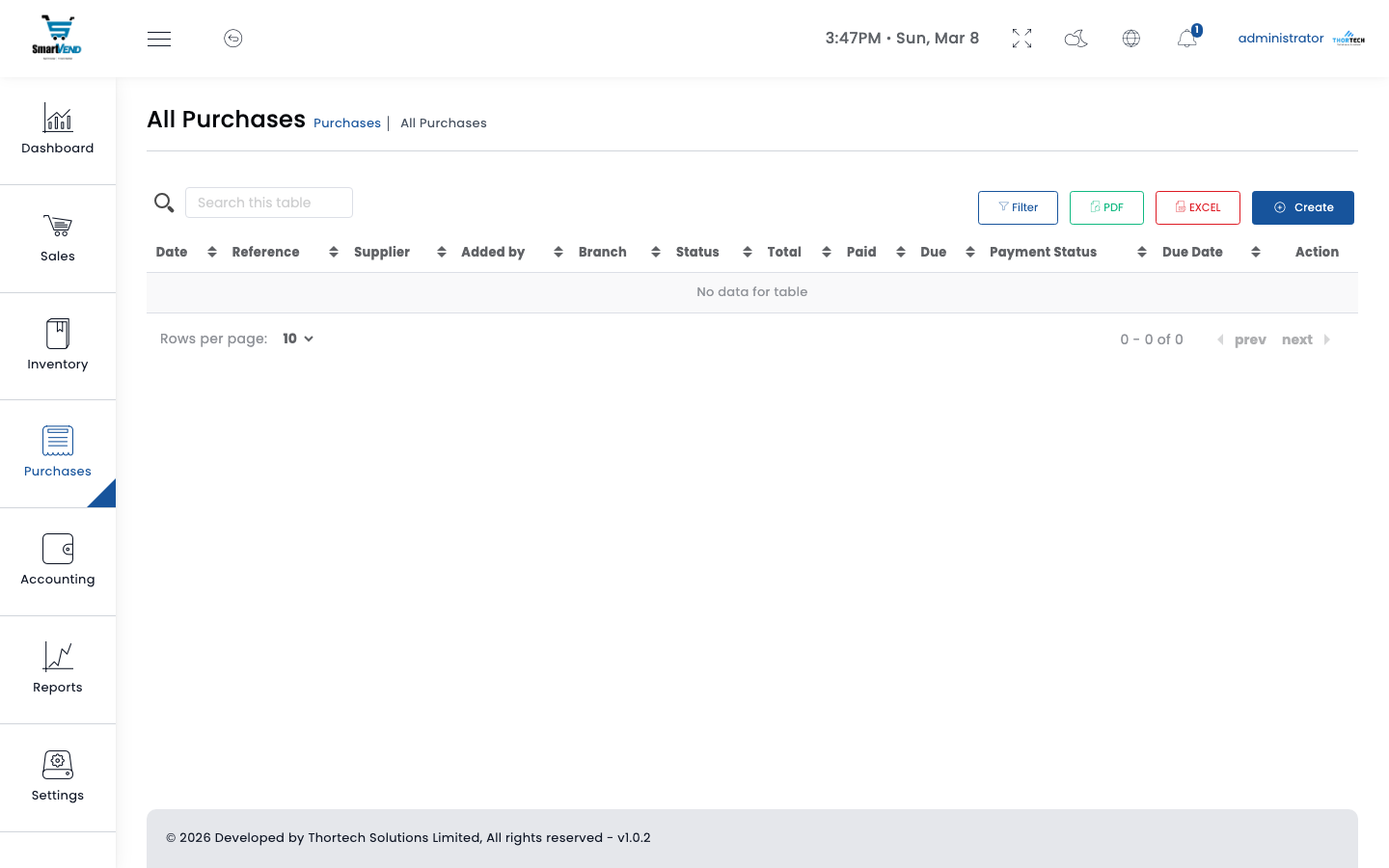
Purchases list
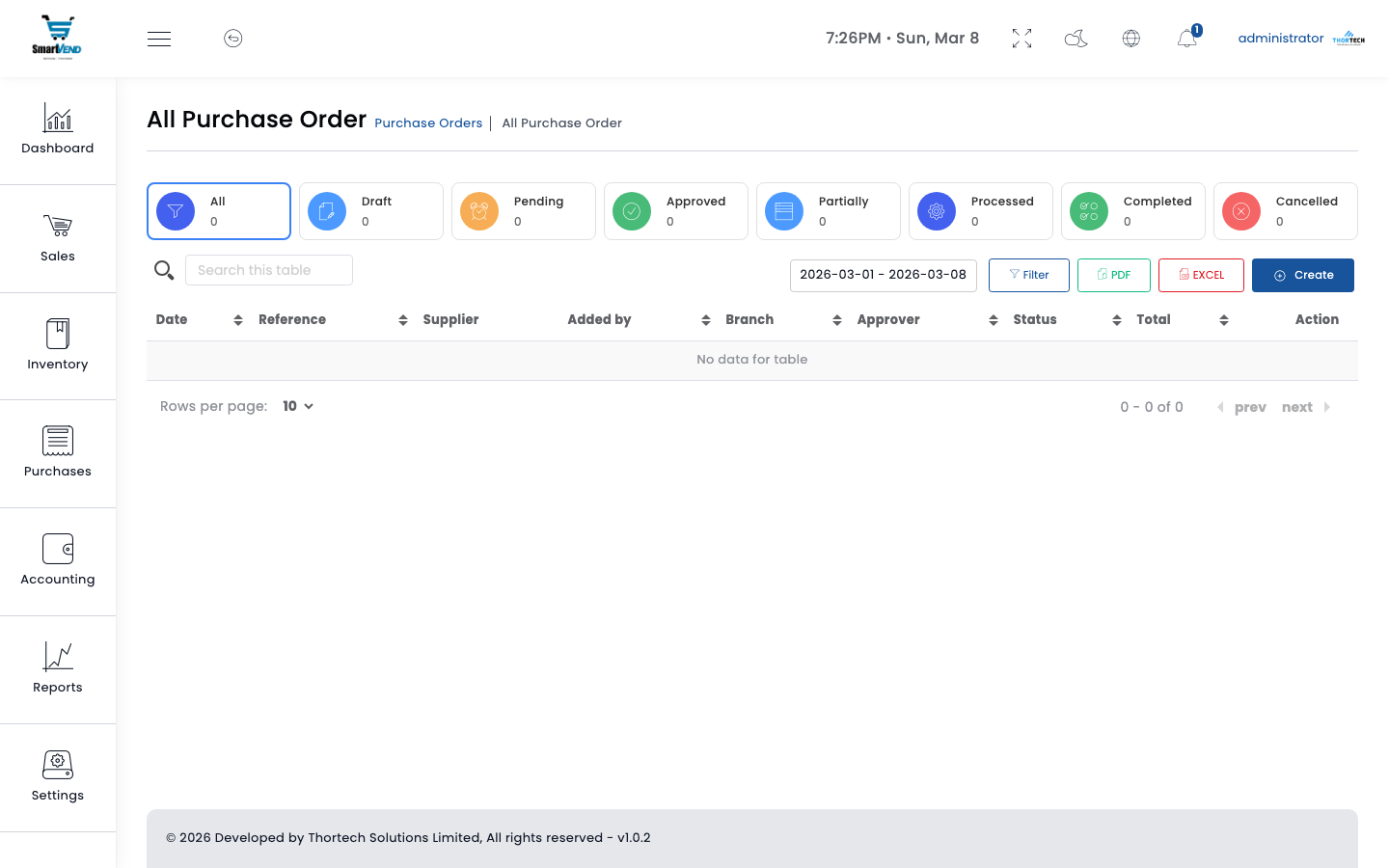
Purchase orders list
Purchase vs Purchase Order
| Document | Purpose | Updates Stock? |
|---|---|---|
| Purchase Invoice (Purchases menu) | Financial record of goods bought from supplier — creates an accounts payable entry | No — stock updated via GRN approval |
| Purchase Order (PO & GRN menu) | Formal order sent to supplier before receiving goods | No |
| GRN (Goods Received Note) | Records physical receipt of goods at a warehouse | Yes — on approval |
Purchase Invoice Fields
| Field | Example | Notes |
|---|---|---|
| Reference | PR_1042 | Auto-generated or manual supplier invoice number |
| Supplier | Prime Distributors Ltd | Must exist in Providers list |
| Warehouse | MAIN | Destination for this purchase |
| Date | 08 March 2026 | Invoice date from supplier |
| Tax | 18% VAT (exclusive) | Configurable per purchase |
| Discount | 2% | Supplier discount applied to total |
| Shipping | TZS 15,000 | Freight / delivery charge |
| Payment Method | Bank Transfer | Account debited on full payment |
Example Purchase Invoice
| Field | Value |
|---|---|
| Reference | PR_1042 |
| Supplier | Prime Distributors Ltd |
| GRN Linked | GRN-000014 |
| Item | Live Broilers × 200 birds @ TZS 8,000 = TZS 1,600,000 |
| Tax (18% excl.) | TZS 288,000 |
| Grand Total | TZS 1,888,000 |
| Paid | TZS 1,000,000 |
| Balance | TZS 888,000 |
| Status | Partial |
Purchase Returns
Return defective or over-delivered goods to the supplier. A purchase return reduces the amount owed to the supplier and (if approved) reverses the stock increase from the original purchase.
API Endpoints
| Method | Endpoint | Description |
|---|---|---|
| GET | /api/purchases | List purchases (paginated) |
| POST | /api/purchases | Create purchase invoice (optionally linked to GRN via grn_id) |
| GET | /api/purchases/{id} | Purchase details with line items |
| PUT | /api/purchases/{id} | Update purchase |
| DELETE | /api/purchases/{id} | Delete purchase |
| GET | /api/get_payments_by_purchase/{id} | All payments made against a purchase |
| GET | /api/purchase_pdf/{id} | Download purchase PDF |
| GET | /api/returns/purchase | List purchase returns |
| POST | /api/returns/purchase | Create purchase return |
| POST | /api/returns/purchase/approve/{id} | Approve purchase return (reverses stock) |
Clients & Providers
Manage your customer database and supplier directory. Each contact holds full transaction history, outstanding balance, and communication preferences.
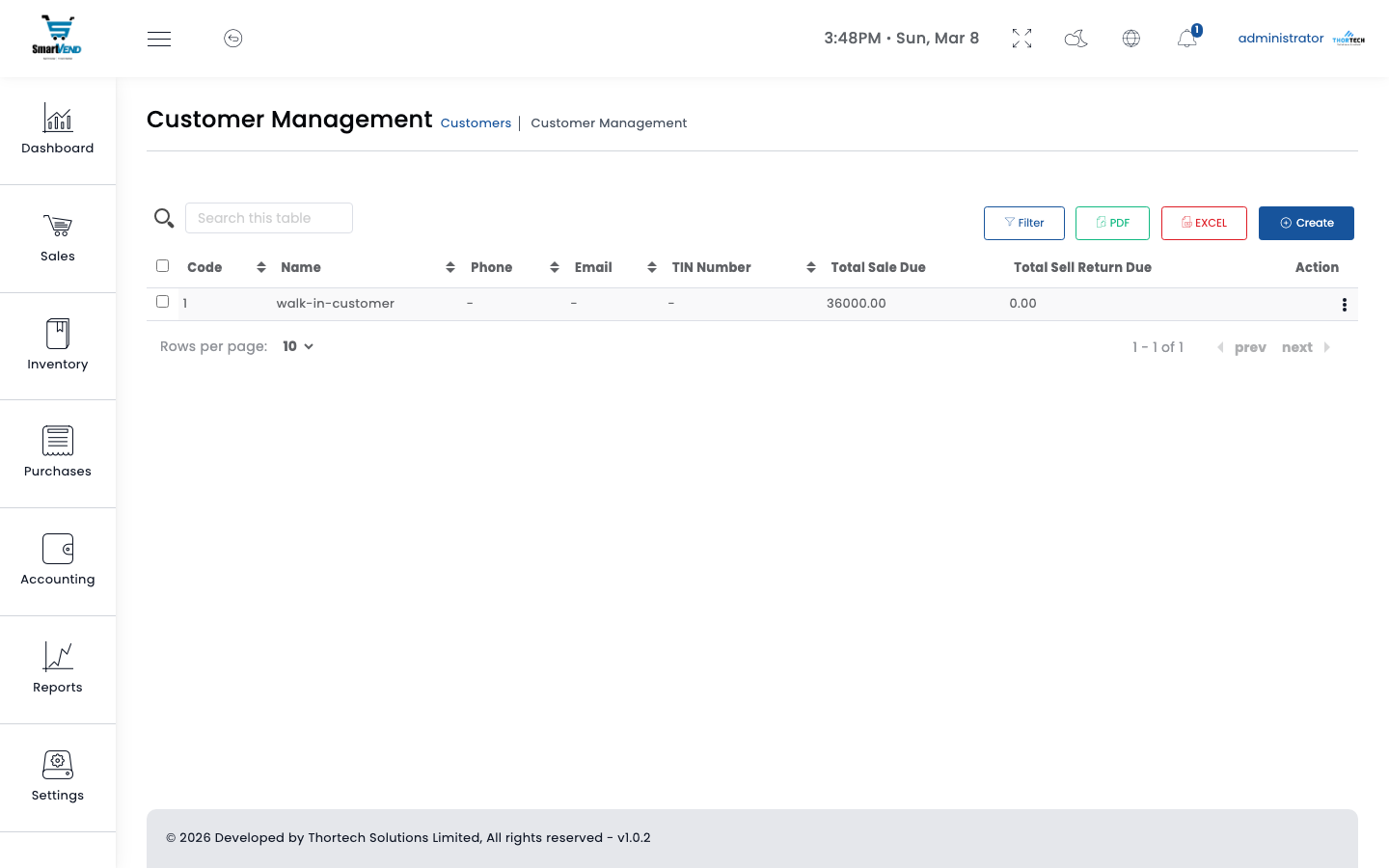
Clients list — searchable with outstanding balance displayed
Client Fields
| Field | Example | Notes |
|---|---|---|
| Name | City Mart Traders Ltd | Company or individual name |
| Phone | +000 712 345 678 | Used for SMS notifications |
| orders@citymart.com | Used for invoice email sending | |
| Address | City Centre | Printed on invoices |
| City | Dar es Salaam | |
| TIN | TAX-123-456-789 | Taxpayer ID; included on VFD receipt |
| Credit Limit | TZS 5,000,000 | Maximum credit allowed before payment required |
| Opening Balance | TZS 0 | Historical balance owed at system go-live |
Client Statement
The client statement shows all transactions (sales, payments, returns) for a client over a date range, with running balance. Available as PDF download.
| Date | Type | Reference | Debit | Credit | Balance |
|---|---|---|---|---|---|
| 2026-03-01 | Sale | SL-MAIN-20260301-002 | TZS 150,000 | — | TZS 150,000 |
| 2026-03-05 | Payment | PAY-SL-2026-0078 | — | TZS 100,000 | TZS 50,000 |
| 2026-03-08 | Sale | SL-MAIN-20260308-001 | TZS 312,500 | — | TZS 362,500 |
| 2026-03-08 | Payment | PAY-SL-2026-0085 | — | TZS 200,000 | TZS 162,500 |
Providers (Suppliers)
Provider Fields
| Field | Example | Notes |
|---|---|---|
| Name | Prime Distributors Ltd | Company or trading name |
| Phone | +000 712 345 678 | Primary contact number |
| orders@primedist.com | Used for purchase order emails | |
| Address | Industrial Zone, Block 4 | Printed on purchase orders |
| City | City Centre | |
| TIN | TAX-987-654-321 | Supplier taxpayer ID for tax records |
| Opening Balance | 0 | Historical balance owed at system go-live |
Supplier Statement
| Date | Type | Reference | Debit | Credit | Balance |
|---|---|---|---|---|---|
| 2026-03-01 | Purchase | PR_1038 | — | 920,000 | 920,000 |
| 2026-03-05 | Payment | PAY-PR-2026-0041 | 500,000 | — | 420,000 |
| 2026-03-08 | Purchase | PR_1042 | — | 1,888,000 | 2,308,000 |
| 2026-03-08 | Payment | PAY-PR-2026-0047 | 1,000,000 | — | 1,308,000 |
API Endpoints
Clients
| Method | Endpoint | Description |
|---|---|---|
| GET | /api/clients | List clients (paginated) |
| POST | /api/clients | Create client |
| PUT | /api/clients/{id} | Update client |
| DELETE | /api/clients/{id} | Delete client |
| GET | /api/get_clients_without_paginate | All clients as flat list (for dropdowns) |
| GET | /api/get_client_store_data/{id} | Client summary with outstanding balance and recent transactions |
| POST | /api/clients_pay_due | Record a payment for a client's outstanding balance |
| POST | /api/clients/import/csv | Bulk import clients from CSV |
Providers
| Method | Endpoint | Description |
|---|---|---|
| GET | /api/providers | List suppliers (paginated) |
| POST | /api/providers | Create supplier |
| PUT | /api/providers/{id} | Update supplier details |
| DELETE | /api/providers/{id} | Delete supplier |
| GET | /api/get_providers_without_paginate | All suppliers as flat list (for dropdowns) |
| GET | /api/get_provider_store_data/{id} | Supplier summary with outstanding payable and recent purchases |
| POST | /api/pay_supplier_due | Record payment for supplier outstanding balance |
| POST | /api/providers/import/csv | Bulk import suppliers from CSV |
Payments
Record all incoming and outgoing financial payments. Each payment is linked to a document (sale, purchase, return) and an account in the chart of accounts.
Payment Types
| Type | Direction | Linked To | Account Effect |
|---|---|---|---|
| Sale Payment | Incoming | Sale invoice | DR cash/bank account, CR Accounts Receivable |
| Purchase Payment | Outgoing | Purchase invoice | DR Accounts Payable, CR cash/bank account |
| PO Payment | Outgoing | Purchase Order (advance) | DR prepayment account, CR cash/bank account |
| Sale Return Payment | Outgoing | Sale return | Refund issued from cash/bank account |
| Purchase Return Payment | Incoming | Purchase return | Supplier credit received into cash/bank account |
Example Sale Payment
| Field | Value |
|---|---|
| Reference | PAY-SL-2026-0085 |
| Sale | SL-MAIN-20260308-001 |
| Client | City Mart Traders Ltd |
| Amount | TZS 200,000 |
| Payment Method | Bank Transfer |
| Account | CRDB Bank Account (112000) |
| Date | 08 March 2026 |
| Notes | Part payment — TZS 112,500 remaining |
API Endpoints
| Method | Endpoint | Description |
|---|---|---|
| GET | /api/payment_sale | List all sale payments |
| POST | /api/payment_sale | Record a sale payment |
| PUT | /api/payment_sale/{id} | Update a sale payment |
| DELETE | /api/payment_sale/{id} | Delete sale payment (reverses balance) |
| GET | /api/payment_sale_get_number | Get next auto-generated payment reference |
| GET | /api/payment_purchase | List all purchase payments |
| POST | /api/payment_purchase | Record a supplier payment |
| GET | /api/payment_purchase_order | List all PO advance payments |
| POST | /api/payment_purchase_order | Record PO advance payment |
| GET | /api/payment/returns_sale | List sale return refund payments |
| GET | /api/payment/returns_purchase | List purchase return receipt payments |
| GET | /api/payment_sale_pdf/{id} | Download payment receipt PDF |
Expenses & Deposits
Record and track all operational costs (expenses) and cash lodgments (deposits). Both modules update account balances and appear in financial reports.
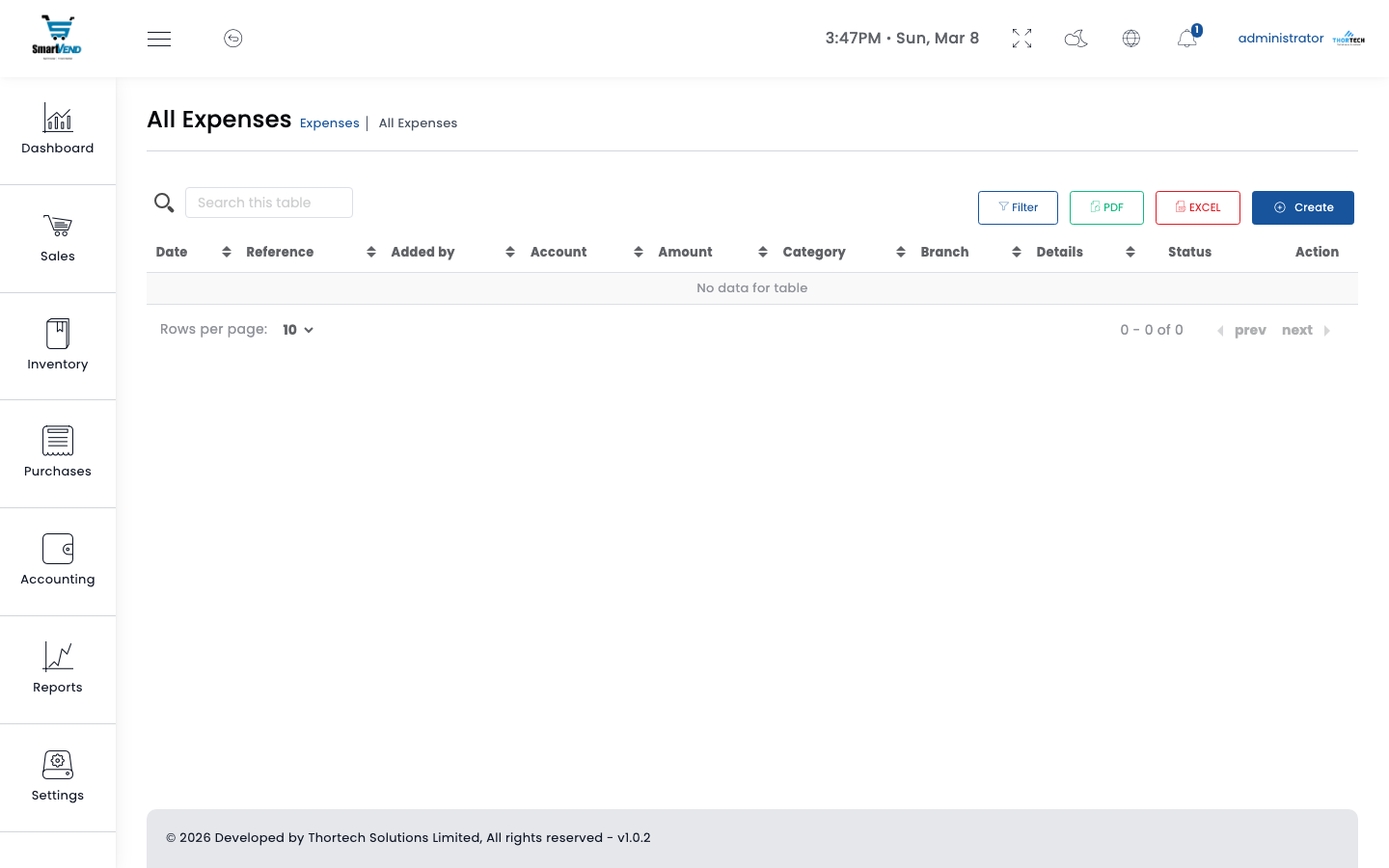
Expenses list — searchable by category, date, and warehouse
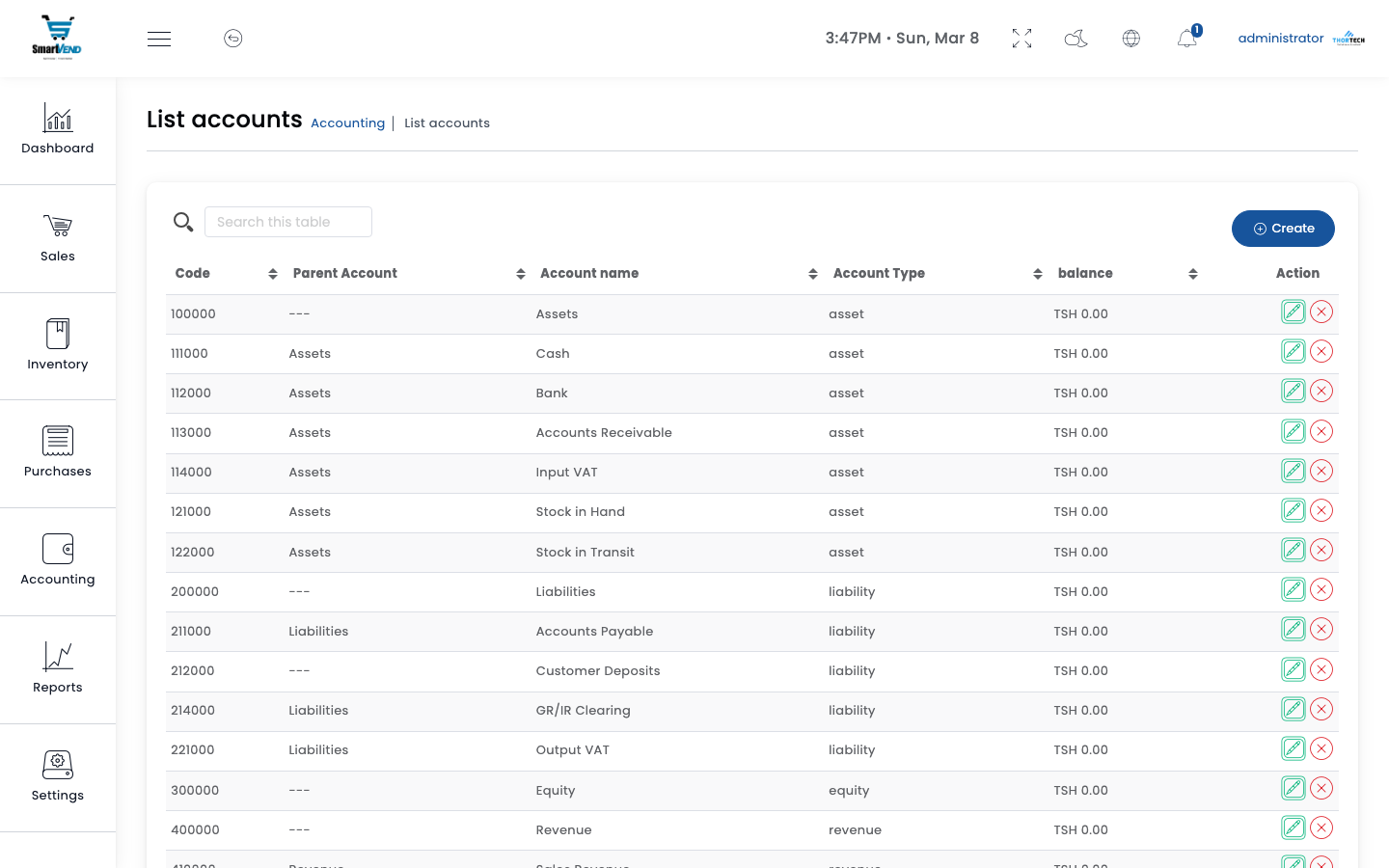
Chart of accounts — balance updated on each transaction
Expenses
OutgoingAn expense records money spent on operational costs — fuel, utilities, salaries, maintenance, etc. Each expense is categorised, linked to a paying account, and optionally assigned to a warehouse (branch).
Expense Fields
| Field | Example | Notes |
|---|---|---|
| Reference | EXP-2026-0023 | Auto-generated sequential number |
| Category | Fuel & Transport | Organises expenses for reporting. Manage categories via Expenses → Categories |
| Description | Delivery vehicle fuel — City to Region | Appears on printed expense vouchers |
| Amount | TZS 85,000 | Full amount paid out |
| Account | Petty Cash (111000) | The account from which this expense is paid |
| Warehouse | Main Warehouse | Branch incurring the cost (for per-branch expense reports) |
| Date | 08 March 2026 | Date the expense was incurred |
| Note | Supplier receipt attached | Internal note, not printed |
Expense Workflow
Example Expense Record
| Field | Value |
|---|---|
| Reference | EXP-2026-0023 |
| Category | Fuel & Transport |
| Description | Delivery vehicle fuel — City to Region route |
| Amount | TZS 85,000 |
| Account | Petty Cash (111000) |
| Warehouse | Main Warehouse |
| Date | 08 March 2026 |
| Status | Approved — Petty Cash reduced by TZS 85,000 |
API Endpoints
| Method | Endpoint | Description |
|---|---|---|
| GET | /api/expenses | List expenses (paginated, filter by category/date/warehouse) |
| POST | /api/expenses | Create new expense |
| PUT | /api/expenses/{id} | Edit an existing expense |
| DELETE | /api/expenses/{id} | Delete expense (reverses account balance) |
| POST | /api/expenses/approve/{id} | Approve expense — deducts from the linked account |
| POST | /api/expenses/delete/by_selection | Bulk delete selected expense IDs |
| GET | /api/expenses_category | List expense categories |
| POST | /api/expenses_category | Create expense category |
Deposits
IncomingA deposit records money received by the business that is not a sale payment — for example, a cash advance from an investor, a bank loan drawdown, or a customer pre-payment. The deposit increases the selected account balance and is recorded as a liability (Customer Deposits) in the double-entry ledger.
Deposit Fields
| Field | Example | Notes |
|---|---|---|
| Reference | DEP-2026-0018 | Auto-generated |
| Description | Advance from ABC Investor | Brief description of the deposit source |
| Amount | TZS 2,000,000 | Deposited amount (positive) |
| Account | CRDB Bank Account (112000) | Account receiving the deposit |
| Date | 08 March 2026 | Date money was received |
Example Deposit Record
| Field | Value |
|---|---|
| Reference | DEP-2026-0018 |
| Description | Initial operating capital from head office |
| Amount | TZS 5,000,000 |
| Account | CRDB Bank Account (112000) |
| Date | 08 March 2026 |
API Endpoints
| Method | Endpoint | Description |
|---|---|---|
| GET | /api/deposits | List all deposits (paginated) |
| POST | /api/deposits | Create deposit — increases the linked account balance |
| PUT | /api/deposits/{id} | Edit deposit amount or details |
| DELETE | /api/deposits/{id} | Delete deposit — reverses the balance increase |
| GET | /api/deposits_category | List deposit categories |
| POST | /api/deposits_category | Create deposit category |
| PUT | /api/deposits_category/{id} | Rename deposit category |
| DELETE | /api/deposits_category/{id} | Delete deposit category |
Accounts & Accounting
SmartVend uses full double-entry bookkeeping. Every financial transaction automatically creates a journal entry with matching debit and credit lines — ensuring the ledger is always balanced and auditable.
What Is Double-Entry Accounting?
Double-entry accounting means that every transaction affects at least two accounts — one is debited and another is credited by the same amount. This ensures the accounting equation always holds:
Assets = Liabilities + Equity
For example, when a customer pays TZS 200,000 for a sale:
| Account | Effect | Amount | Why |
|---|---|---|---|
| CRDB Bank Account (112000) | DR | TZS 200,000 | Money enters the bank — asset increases |
| Accounts Receivable (113000) | CR | TZS 200,000 | Customer's debt is cleared — receivable decreases |
AccountingService.php. You do not need to manually enter them. Each entry is linked to the source document (sale, expense, GRN, etc.) for easy tracing.Chart of Accounts
All financial accounts are maintained in a hierarchical chart of accounts. Navigate to Accounts → Chart of Accounts to view balances, add new accounts, and inspect transaction history per account.
| Code | Account Name | Type | Normal Balance | Example Balance |
|---|---|---|---|---|
111000 | Petty Cash | Asset | Debit | TZS 234,500 |
112000 | CRDB Bank Account | Asset | Debit | TZS 8,450,000 |
113000 | Accounts Receivable | Asset | Debit | TZS 1,320,750 |
200000 | Liabilities (parent) | Liability | Credit | — |
211000 | Accounts Payable | Liability | Credit | TZS 2,100,000 |
212000 | Customer Deposits | Liability | Credit | TZS 450,000 |
410000 | Sales Revenue | Revenue | Credit | TZS 48,500,000 |
430000 | Sales Returns | Revenue (contra) | Debit | TZS 1,200,000 |
500000 | Expenses (parent) | Expense | Debit | — |
511000 | Cost of Goods Sold | Expense | Debit | TZS 23,400,000 |
512000 | Purchase Returns | Expense (contra) | Credit | TZS 380,000 |
520000 | General Expenses | Expense | Debit | TZS 2,840,000 |
Automatic Journal Entries
The following table shows which journal entries are created automatically for each type of transaction. You can view them via Accounts → Journal Entries.
| Transaction | Debit | Credit |
|---|---|---|
| Sale recorded | Accounts Receivable (113000) | Sales Revenue (410000) |
| Sale payment received | Cash/Bank account (chosen by user) | Accounts Receivable (113000) |
| Purchase invoice | Cost of Goods Sold (511000) | Accounts Payable (211000) |
| Supplier payment made | Accounts Payable (211000) | Cash/Bank account (chosen by user) |
| Expense approved | General Expenses (520000) | Cash/Bank account (paid from) |
| Deposit recorded | Cash/Bank account (received into) | Customer Deposits (212000) |
| GRN approved | Inventory / Stock account | Goods Received Not Invoiced |
| Stock adjustment (add) | Inventory / Stock account | Adjustment account |
| Sale return approved | Sales Returns (430000) | Inventory / Stock account |
API Endpoints
| Method | Endpoint | Description |
|---|---|---|
| GET | /api/accounts | List all accounts with current balances |
| POST | /api/accounts | Create a new account (specify parent, type, normal_balance) |
| PUT | /api/accounts/{id} | Rename or re-parent an account |
| DELETE | /api/accounts/{id} | Delete an account (only if balance is zero and no transactions) |
| GET | /api/accounts/{id}/journal-entries | All journal entries for a specific account |
| GET | /api/transfer_money | List account-to-account internal transfers |
| POST | /api/transfer_money | Transfer balance between two accounts (e.g. bank → petty cash) |
Returns
SmartVend handles both sale returns (customers returning goods) and purchase returns (sending goods back to suppliers). All returns require manager approval before stock quantities and financial accounts are updated, providing a controlled audit trail.
Sale Returns — Customer Returns Goods
A sale return is raised when a customer brings back goods — damaged items, incorrect quantities, quality issues, or order mistakes. The return reverses part of the original sale, restores stock, and records a refund to the customer.
Sale Return Fields
| Field | Example | Notes |
|---|---|---|
| Reference | SR-2026-0008 | Auto-generated |
| Original Sale | SL-MAIN-20260308-001 | Must exist in the system |
| Warehouse | MAIN | Stock is restored to the original sale's warehouse |
| Returned Items | Broiler Chicken × 5 Kg | Can be a partial return — not all items need to be returned |
| Return Reason | Quality issue — underweight birds | Printed on the credit note PDF |
| Status | Pending → Approved | Only approved returns affect stock and finances |
| Field | Value |
|---|---|
| Return Ref | SR-2026-0008 |
| Original Sale | SL-MAIN-20260308-001 |
| Client | City Mart Traders Ltd |
| Item Returned | Broiler Chicken (Dressed) × 5 Kg @ TZS 12,500 |
| Return Value | TZS 62,500 |
| Reason | Quality issue — underweight birds |
| Status | Approved |
| Refund | TZS 62,500 recorded as Sale Return Payment — Petty Cash |
Purchase Returns — Return Goods to Supplier
A purchase return is raised when goods received from a supplier need to be sent back — due to defects, over-delivery, or specification mismatch. The return reduces the amount owed to the supplier and (on approval) removes the stock from the warehouse.
| Field | Value |
|---|---|
| Return Ref | PR-RET-2026-0003 |
| Original Purchase | PR_1042 — Prime Distributors Ltd |
| Item Returned | Live Broilers × 20 birds @ TZS 8,000 = TZS 160,000 |
| Reason | Diseased birds identified during slaughter QC |
| Status | Approved — Main Warehouse stock reduced by 20 birds, supplier payable reduced by 160,000 |
API Endpoints
Sale Returns
| Method | Endpoint | Description |
|---|---|---|
| GET | /api/returns/sale | List all sale returns (paginated, filter by date/warehouse) |
| POST | /api/returns/sale | Create a sale return (status: pending, no stock effect yet) |
| GET | /api/returns/sale/{id} | Full sale return details with line items |
| POST | /api/returns/sale/approve/{id} | Approve — restores stock to warehouse and updates finances |
| DELETE | /api/returns/sale/{id} | Delete unapproved return |
| GET | /api/return_sale_pdf/{id} | Download credit note PDF for the sale return |
| GET | /api/returns/sale/payment/{id} | Refund payments recorded against a specific sale return |
| POST | /api/payment/returns_sale | Record a refund payment for a sale return |
Purchase Returns
| Method | Endpoint | Description |
|---|---|---|
| GET | /api/returns/purchase | List all purchase returns |
| POST | /api/returns/purchase | Create a purchase return |
| POST | /api/returns/purchase/approve/{id} | Approve — deducts stock and reduces accounts payable |
| DELETE | /api/returns/purchase/{id} | Delete unapproved return |
| POST | /api/payment/returns_purchase | Record cash received from supplier as purchase return refund |
Warehouses
Warehouses are the core organisational unit in SmartVend. Every stock movement, sale, purchase, transfer, and adjustment is linked to a specific warehouse. You can create as many warehouses as you need — one store, ten branches, a van fleet — and remove or rename them at any time. Users can be restricted to specific warehouses via their role permissions.
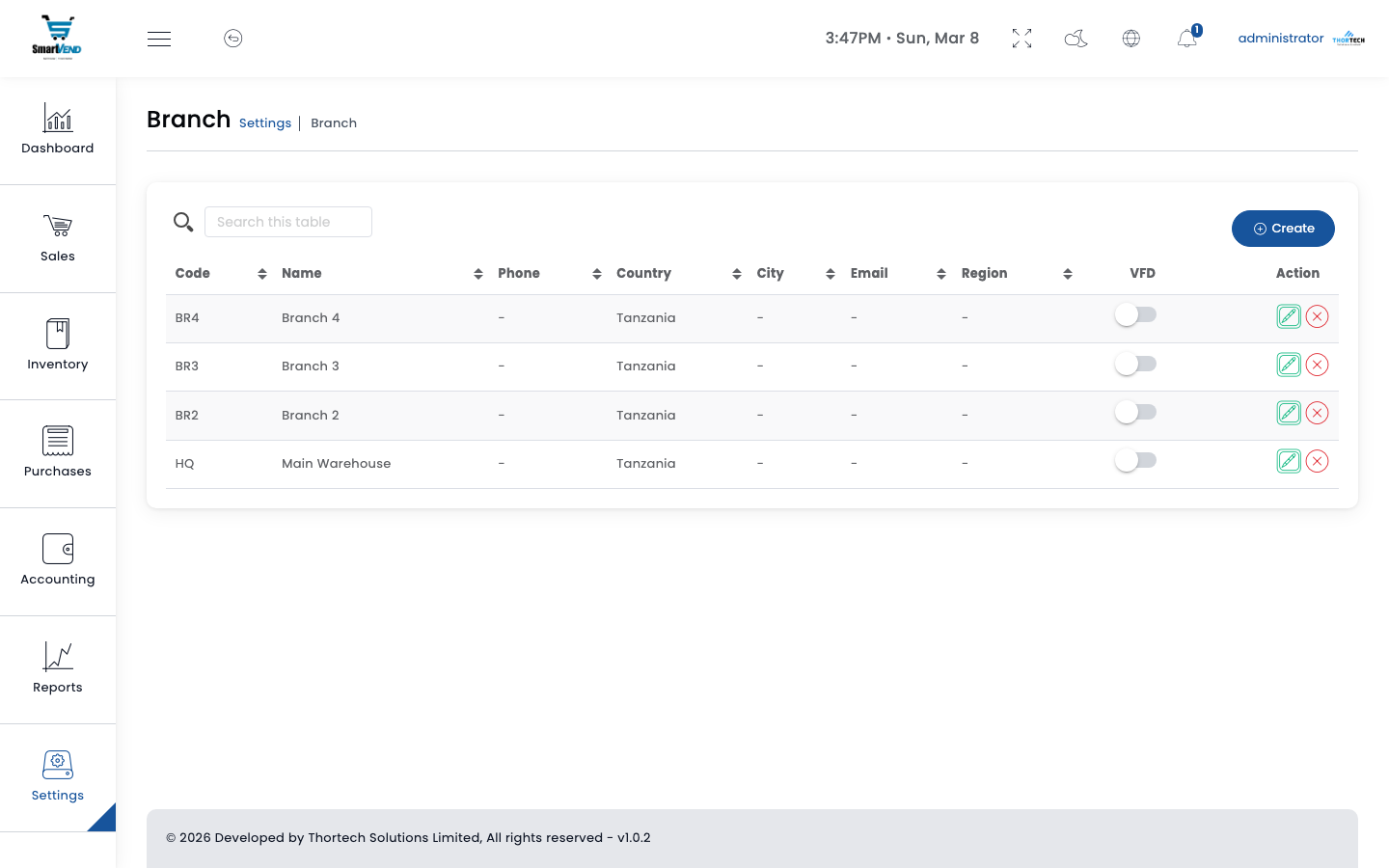
Figure 6 — Warehouses management
Warehouse Fields
| Field | Example | Notes |
|---|---|---|
| Name | Main Warehouse | Full name displayed in forms, reports, and documents |
| Code | MAIN | Max 10 chars, uppercase. Used in sale reference numbers (e.g. SL-MAIN-20260308-001). Cannot be changed after sales are recorded. |
| main@yourbusiness.com | Printed on sale and purchase documents as the branch contact | |
| Phone | +000 100 200 300 | Printed on documents and used for SMS notifications |
| Address | 123 Industrial Avenue, City Centre | Physical address printed on documents |
| City | City Centre | City shown in the warehouse list |
| VFD Activated | Yes / No | When enabled, POS sales at this branch automatically submit to TRA VFD. Toggle separately per branch. |
Example Warehouse Setup
| Code | Name | Location | VFD | Notes |
|---|---|---|---|---|
MAIN | Main Warehouse | City Centre | Active | Central hub — receiving, wholesale dispatch, finance |
NORTH | North Branch | Northern District | Active | Retail outlet — walk-in and local B2B |
SOUTH | South Branch | Southern District | Active | Retail counter — restocked weekly from MAIN |
EAST | East Depot | Eastern Region | Active | Regional depot — serves upcountry wholesale |
VAN01 | Delivery Van 1 | Mobile | Off | Example of a mobile stock location (van, kiosk) |
The codes above (MAIN, NORTH, SOUTH, EAST, VAN01) are illustrative only. Use any code and name that matches your real locations.
Example Warehouse Record
| Field | Example Value |
|---|---|
| Name | Main Warehouse |
| Code | MAIN |
| Address | 123 Industrial Avenue, City Centre |
| main@yourbusiness.com | |
| Phone | +000 100 200 300 |
| VFD Active | Yes |
How Warehouses Affect Stock
- Sales — deduct stock from the selected warehouse. A sale at Main Warehouse reduces Main Warehouse stock only.
- Purchases / GRN — add stock to the destination warehouse on GRN approval.
- Transfers — move stock between warehouses. Source is reduced when dispatched; destination is increased when received.
- Adjustments — increase or decrease stock at the specified warehouse on manager approval.
- POS — POS terminal uses the warehouse linked to the cashier's active shift session.
- Reports — all reports can be filtered by warehouse to compare branch performance.
API Endpoints
| Method | Endpoint | Description |
|---|---|---|
| GET | /api/warehouses | List all warehouses |
| POST | /api/warehouses | Create a new warehouse |
| PUT | /api/warehouses/{id} | Update warehouse details |
| DELETE | /api/warehouses/{id} | Delete warehouse (only if no stock or transactions linked) |
| PUT | /api/vfd_switch_activated/{id} | Toggle VFD tax submission on/off for a specific warehouse |
| GET | /api/get_Products_by_warehouse/{id} | All products with their stock level at the given warehouse |
| GET | /api/report/warehouse_report | Full sales, purchases, and expense summary per warehouse |
Stock Transfers
Move stock between warehouse locations with a multi-step workflow: create, submit, approve, dispatch, and receive confirmation at the destination.
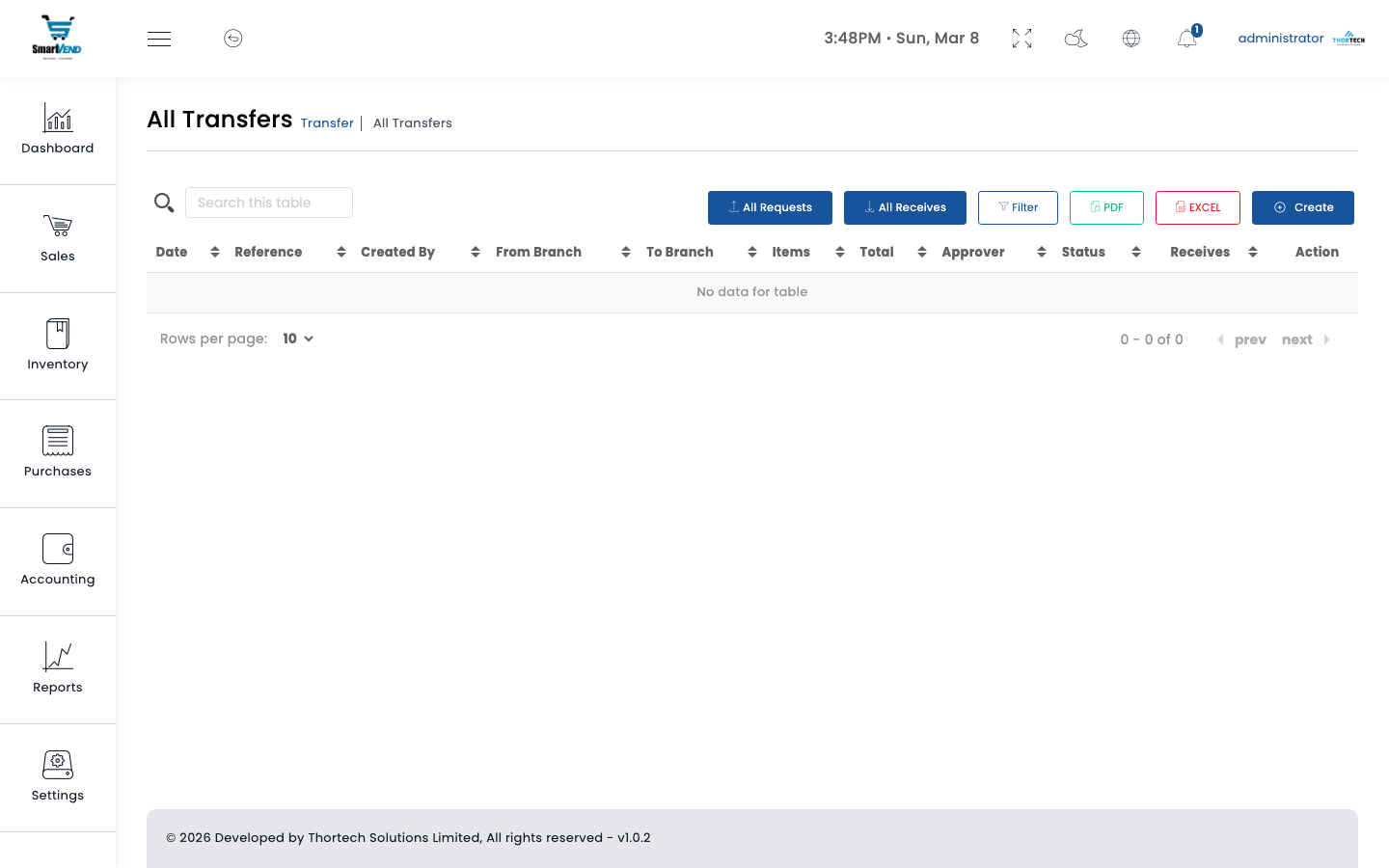
Stock transfers list — showing status and warehouse routes
Transfer Workflow
Transfer Statuses
| Status | Meaning | Stock Effect |
|---|---|---|
| Draft | Created, not yet submitted | None |
| Pending | Submitted, awaiting approval | None |
| Approved | Approved, ready to dispatch | None |
| Sent | Goods dispatched from source | Source warehouse deducted |
| Completed | Destination confirmed receipt | Destination warehouse added |
Example Transfer
| Field | Value |
|---|---|
| Reference | TR-2026-0019 |
| From | Main Warehouse |
| To | East Depot |
| Product | Broiler Chicken (Dressed) × 80 Kg |
| Transfer Date | 08 March 2026 |
| Status | Sent — awaiting East Depot confirmation |
Transfer Requests
A transfer request allows a destination warehouse to formally request stock from another location. The source warehouse can approve or reject the request before creating the actual transfer.
API Endpoints
| Method | Endpoint | Description |
|---|---|---|
| GET | /api/transfers | List all transfers |
| POST | /api/transfers | Create transfer |
| POST | /api/transfer/approve/{id} | Manager approves transfer |
| POST | /api/transfer/submit/{id} | Mark goods as dispatched |
| POST | /api/transfer/complete/{id} | Destination confirms receipt — updates destination stock |
| GET | /api/receives | List transfer receives at destination |
| POST | /api/receive/approve/{id} | Approve received transfer |
| GET | /api/requests | List transfer requests |
| POST | /api/request/approve/{id} | Approve transfer request |
Quotations
Create price quotations for customers and convert accepted ones to sales with a single click. Send by email, SMS, or WhatsApp.
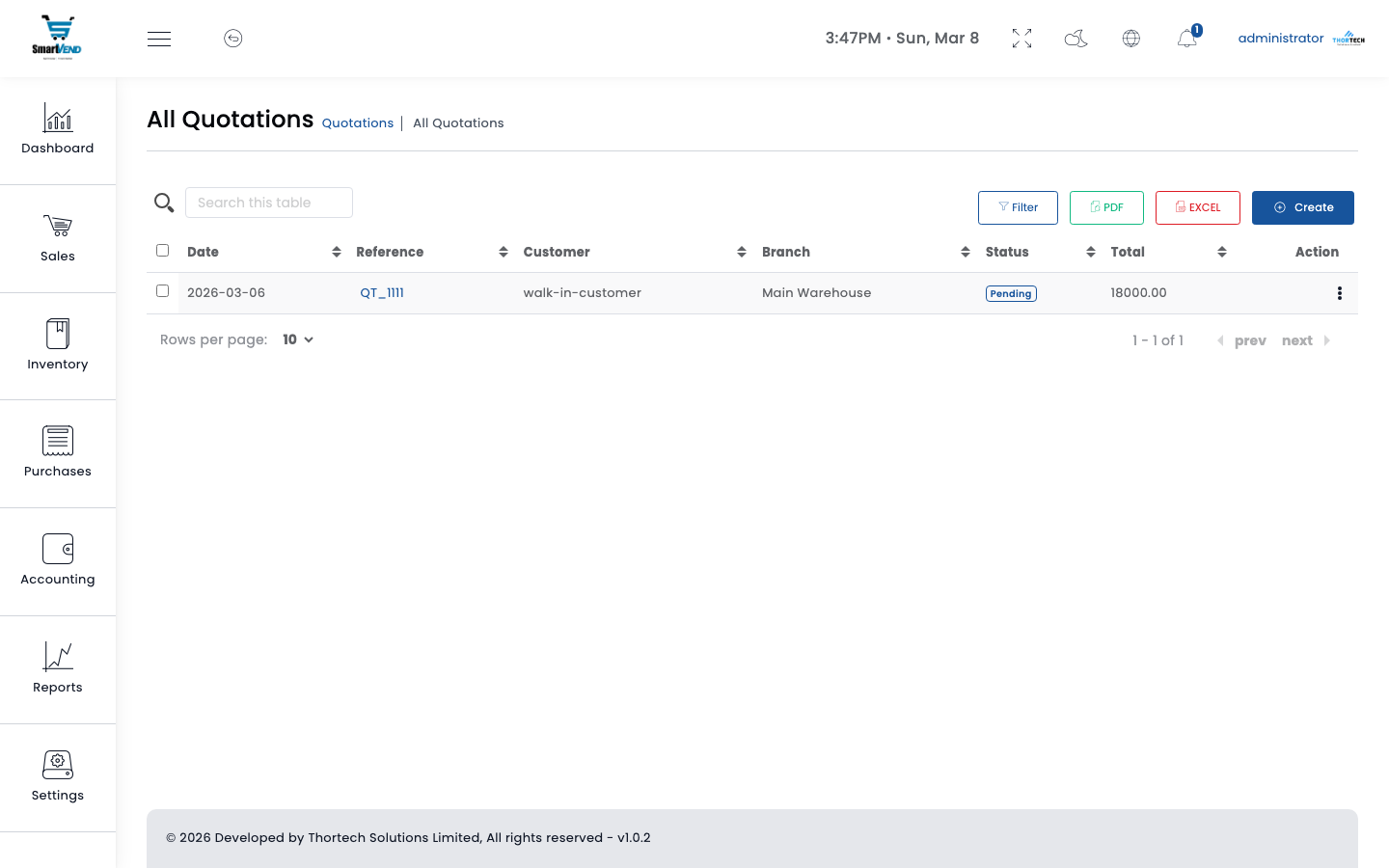
Quotations list — with status filters and conversion action
Quotation Workflow
Quotation Fields
| Field | Example | Notes |
|---|---|---|
| Reference | QT-2026-0034 | Auto-generated sequential number |
| Client | Grand Hospitality Group | Optional — leave blank for anonymous prospect |
| Warehouse | Main Warehouse | Stock availability checked against this location |
| Date | 08 March 2026 | Date the quotation is issued |
| Valid Until | 15 March 2026 | Expiry date shown on printed quotation PDF |
| Discount (%) | 5% | Header-level discount applied to grand total |
| Tax | 18% exclusive | Configurable per quotation; carried over to sale on conversion |
| Shipping | 5,000 | Optional delivery charge included in total |
| Notes | Prices valid for 7 days only | Printed on the quotation PDF |
| Status | Draft → Sent → Converted / Expired | Updated automatically when sent or converted |
Quotation Statuses
| Status | Meaning | Action Available |
|---|---|---|
| Draft | Quotation created but not yet sent to the client | Edit, send by email/SMS, delete |
| Sent | Quotation delivered to client — awaiting response | Follow up, convert to sale, expire |
| Converted | Client accepted — sale invoice created from this quotation | View linked sale, download PDF |
| Expired | Valid-until date has passed without conversion | Duplicate with new dates, download PDF |
Example Quotation
| Field | Value |
|---|---|
| Reference | QT-2026-0034 |
| Client | Grand Hospitality Group |
| Warehouse | Main Warehouse |
| Item | Product A × 200 units @ 12,500 = 2,500,000 |
| Tax (18% excl.) | 450,000 |
| Grand Total | 2,950,000 |
| Valid Until | 15 March 2026 |
| Status | Sent — awaiting client confirmation |
Sending a Quotation
After saving a quotation, use the action buttons on the quotation detail page to deliver it to your client. The quotation PDF is generated automatically.
| Channel | What Is Sent | API Endpoint |
|---|---|---|
| PDF quotation attached; subject and body use the email template from Settings → Notifications | POST /api/quotation_send_email | |
| SMS | Short message with reference, total, and valid-until date; client's phone number from their profile | POST /api/quotation_send_sms |
| Message with a link to download the quotation PDF | POST /api/quotation_send_whatsapp |
API Endpoints
| Method | Endpoint | Description |
|---|---|---|
| GET | /api/quotations | List quotations (paginated, filter by date/client/warehouse/status) |
| POST | /api/quotations | Create a new quotation with line items |
| GET | /api/quotations/{id} | Full quotation details with all line items |
| PUT | /api/quotations/{id} | Edit a quotation (only while in Draft or Sent status) |
| DELETE | /api/quotations/{id} | Delete a quotation (soft-delete) |
| GET | /api/quote_pdf/{id} | Download quotation as a PDF document |
| GET | /api/convert_to_sale_data/{id} | Return quotation data pre-formatted to fill the new sale form |
| POST | /api/quotation_send_email | Email quotation PDF to the client |
| POST | /api/quotation_send_sms | Send quotation SMS to client phone |
Purchase Orders & GRN
SmartVend offers flexible procurement — formal Purchase Orders (PO) for planned procurement, or Direct GRNs for immediate receiving. The GRN (Goods Received Note) is the document that actually updates warehouse stock when goods are physically received.
Purchase orders list — showing PO status and supplier
Goods Received Notes (GRN) list — each line shows linked PO and approval status
Three Receiving Workflows
| Workflow | When to Use | Steps |
|---|---|---|
| PO → GRN → Purchase | Planned procurement with formal approval before goods arrive. Ensures purchasing is authorized before any stock or financial commitment. | Create PO → Submit for approval → Manager approves PO → Goods arrive → Create GRN (linked to PO) → Approve GRN (stock updated) → Convert to Purchase Invoice |
| Direct GRN → Purchase | Goods arrive unexpectedly without a prior purchase order (walk-in supplier, emergency restock) | Navigate to PO & GRN → Receive Goods → Enable Direct GRN toggle → Select warehouse & supplier → Add products → Approve GRN → Convert to Purchase Invoice |
| Direct Purchase Invoice | Skip the receiving workflow entirely — useful for service purchases or when stock has already been counted | Go to Purchases → Create Purchase → Fill supplier, items, amounts → Save |
Purchase Order Fields
| Field | Example | Notes |
|---|---|---|
| PO Reference | PO-2026-0055 | Auto-generated |
| Supplier | Prime Distributors Ltd | Must exist in Providers list |
| Warehouse | MAIN | Destination warehouse for the ordered goods |
| Expected Date | 10 March 2026 | When goods are expected — for planning only |
| Products & Quantities | Live Broilers × 500 birds | Quantities and unit prices from negotiated terms |
| Tax | 18% VAT exclusive | Configurable per order |
| Notes | Priority delivery — cold chain required | Printed on PO document sent to supplier |
PO Status Flow
GRN — Goods Received Note
The GRN is the physical receiving document. It records what was actually received at the warehouse — which may differ from the PO quantity (partial delivery, damaged items, etc.). Only on GRN approval does the stock quantity in the system increase.
GRN creation form — toggle Direct GRN to receive without a linked PO
GRN Fields
| Field | Example | Notes |
|---|---|---|
| Reference | GRN-000014 | Auto-generated sequential number |
| Purchase Order | PO-2026-0055 or None | Leave blank for Direct GRN |
| Supplier | Prime Distributors Ltd | Auto-filled from PO, or choose manually for Direct GRN |
| Warehouse | Main Warehouse | Where the goods are being received |
| Received Date | 08 March 2026 | Physical delivery date |
| Products & Quantities | Live Broilers × 200 birds | Actual quantities counted on receipt — may differ from PO |
| QC Status | Passed / Failed | Quality check result — for record keeping |
| Notes | 15 birds rejected — disease symptoms | Internal notes on receiving condition |
| Field | Value |
|---|---|
| Reference | GRN-000014 |
| Purchase Order | None (Direct GRN) |
| Supplier | Prime Distributors Ltd |
| Warehouse | Main Warehouse |
| Received Qty | 200 birds |
| QC Status | Passed |
| Status | Approved → Main Warehouse stock +200 birds → converted to PR_1042 |
Supplier Claims
A supplier claim is raised when goods received from a supplier do not meet the agreed specification — wrong quantity, quality failure, or pricing discrepancy. Claims are logged against the original purchase order and tracked through an approval workflow before any credit is applied.
Claim Fields
| Field | Example | Notes |
|---|---|---|
| Reference | CLM-2026-0004 | Auto-generated |
| Purchase Order | PO-2026-0055 | The PO against which the claim is raised |
| Supplier | Prime Distributors Ltd | Auto-filled from the linked PO |
| Claim Type | Quality / Quantity / Pricing | Categorises the nature of the dispute |
| Products | Live Broilers × 30 birds | Line items subject to the claim |
| Claim Amount | 240,000 | Value being disputed or reclaimed from supplier |
| Description | 30 birds delivered underweight — avg 1.2 Kg vs contracted 1.8 Kg | Evidence details for the supplier |
| Status | Pending → Approved / Rejected | Manager must approve before supplier is notified |
| Field | Value |
|---|---|
| Reference | CLM-2026-0004 |
| PO | PO-2026-0055 — Prime Distributors Ltd |
| Item | Live Broilers × 30 birds |
| Claim Amount | 240,000 (30 birds × 8,000) |
| Reason | Underweight delivery — agreed 1.8 Kg/bird, received 1.2 Kg/bird average |
| Status | Approved — supplier to issue credit note or replacement delivery |
Claim API Endpoints
| Method | Endpoint | Description |
|---|---|---|
| GET | /api/claims | List all supplier claims |
| POST | /api/claims | Create a new claim (linked to a purchase order) |
| GET | /api/claims/{id} | Claim details with line items |
| POST | /api/claims/approve/{id} | Manager approves the claim |
API Endpoints
Purchase Orders
| Method | Endpoint | Description |
|---|---|---|
| GET | /api/purchase_orders | List all purchase orders (paginated) |
| POST | /api/purchase_orders | Create a new purchase order |
| GET | /api/purchase_orders/{id} | PO details with all line items |
| PUT | /api/purchase_orders/{id} | Edit PO before approval |
| DELETE | /api/purchase_orders/{id} | Delete unapproved PO |
| POST | /api/purchase_order/submit/{id} | Submit PO for approval |
| POST | /api/purchase_order/approve/{id} | Manager approves PO — enables GRN creation |
| GET | /api/purchase_pdf/{id} | Download PO as PDF to send to supplier |
Goods Received Notes (GRN)
| Method | Endpoint | Description |
|---|---|---|
| GET | /api/grns | List all GRNs (paginated) |
| POST | /api/grn/create | Create GRN — set order_id=null for Direct GRN |
| GET | /api/grn/{id} | GRN details with line items |
| PUT | /api/grn/{id} | Edit GRN before approval |
| POST | /api/grn/approve/{id} | Approve GRN — updates warehouse stock and creates journal entry |
| GET | /api/get_receive_data/{grnId} | Pre-fill purchase invoice form from an approved GRN |
| GET | /api/get_order | POs, suppliers, and warehouses for the GRN creation form |
Stock Adjustments
Manually correct stock quantities when the physical count differs from the system quantity — for write-offs, spoilage, theft, damage, or found stock. Every approved adjustment generates a double-entry journal entry to maintain ledger integrity.
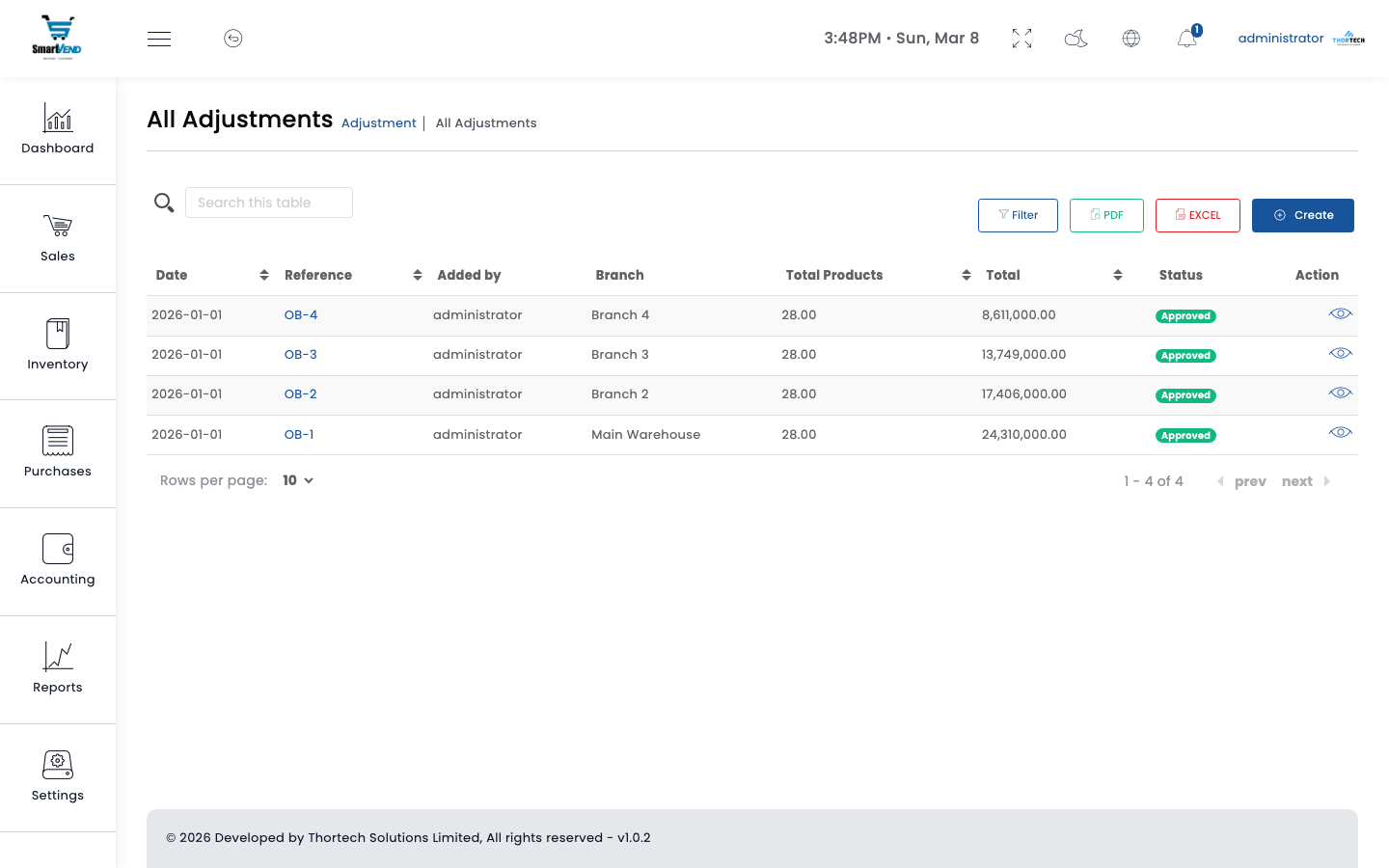
Figure 9 — Stock adjustments list with status and warehouse filter
Adjustment Types
| Type | Effect on Stock | Use Case | Example |
|---|---|---|---|
| Addition (+) | Increases warehouse stock quantity | Found stock during a physical count, unreported receipt | +12 Kg Broiler Chicken found in cold store during month-end count |
| Subtraction (–) | Decreases warehouse stock quantity | Spoilage, theft, damage, expiry write-off | –8 Kg Chicken livers spoiled due to refrigeration failure |
Adjustment Workflow
Adjustment Fields
| Field | Example | Notes |
|---|---|---|
| Reference | ADJ-2026-0011 | Auto-generated |
| Date | 08 March 2026 | Date of the physical event |
| Warehouse | Main Warehouse | Only the selected warehouse is affected |
| Product(s) | Broiler Chicken (Dressed) | Multiple products can be adjusted in one document |
| Quantity | 8 Kg | The magnitude of the change (always positive; direction set by Type) |
| Type | Subtraction (–) | Addition or Subtraction |
| Reason / Note | Spoilage due to power outage | Printed on the adjustment document for audit purposes |
Example Adjustment
| Field | Value |
|---|---|
| Reference | ADJ-2026-0011 |
| Warehouse | North Branch |
| Date | 08 March 2026 |
| Product | Chicken Wings |
| Quantity | 15 Kg |
| Type | Subtraction |
| Reason | Freezer malfunction — product spoiled overnight |
| Status | Approved — North Branch stock reduced by 15 Kg, journal entry DR General Expenses / CR Inventory |
API Endpoints
| Method | Endpoint | Description |
|---|---|---|
| GET | /api/adjustments | List all adjustments (paginated, filter by warehouse/date) |
| POST | /api/adjustments | Create a new stock adjustment (status: pending) |
| GET | /api/adjustments/{id} | Full adjustment details with all product lines |
| PUT | /api/adjustments/{id} | Edit adjustment before approval |
| DELETE | /api/adjustments/{id} | Delete unapproved adjustment |
| POST | /api/adjustments/approve/{id} | Approve — updates stock quantities and creates journal entry |
VFD / TRA Tax Compliance
SmartVend integrates with the VFD API to submit tax receipts to the Tanzania Revenue Authority (TRA) in real time.
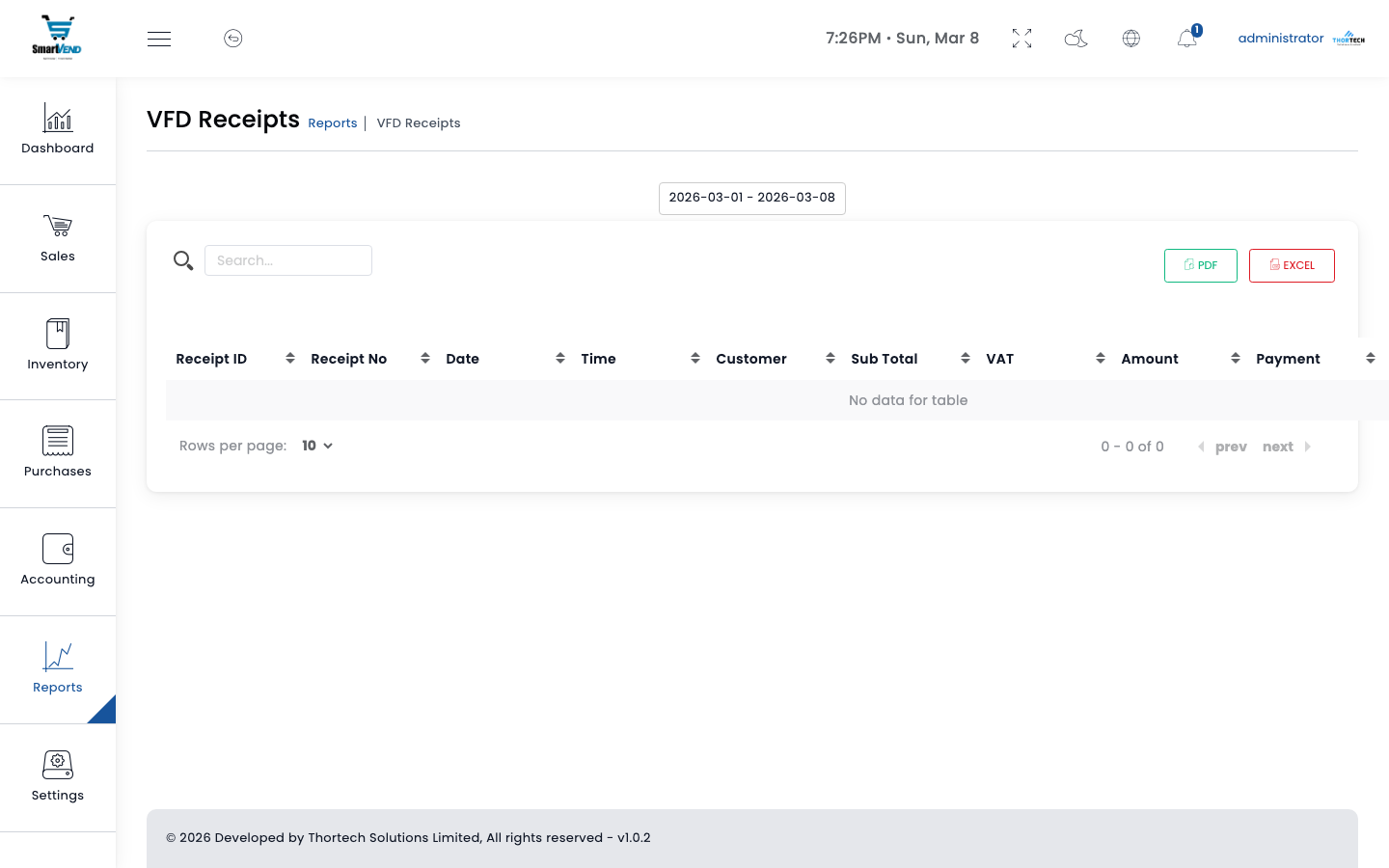
VFD receipts list
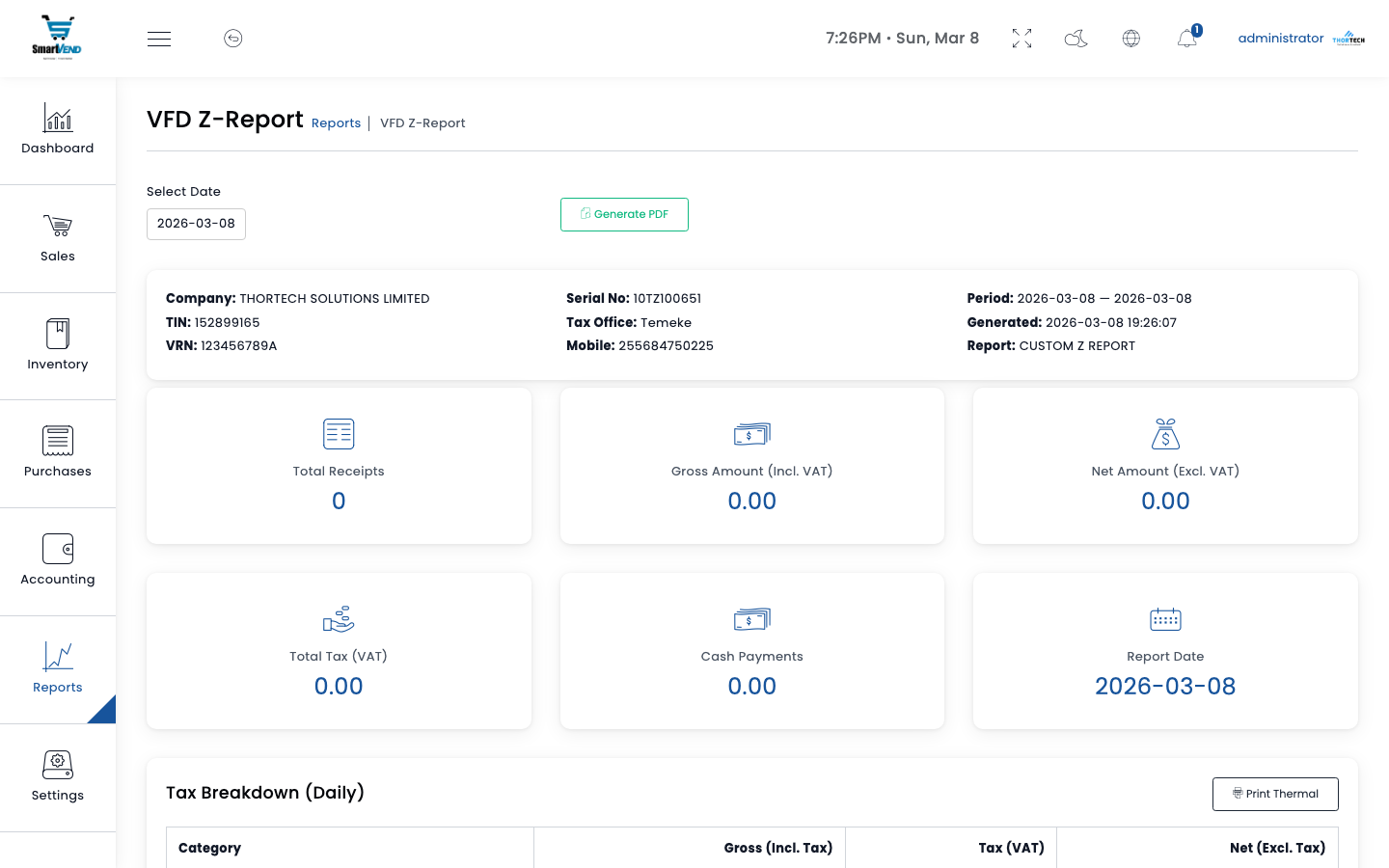
Daily Z-Report
Environments
| Environment | VFD API URL | TRA Verify URL |
|---|---|---|
| Staging / Test | https://test.myvfd.app | https://virtual.tra.go.tz/efdmsRctVerify/ |
| Live / Production | https://vfd.co.tz | https://verify.tra.go.tz/ |
VFD Configuration (Settings → VFD Tab)
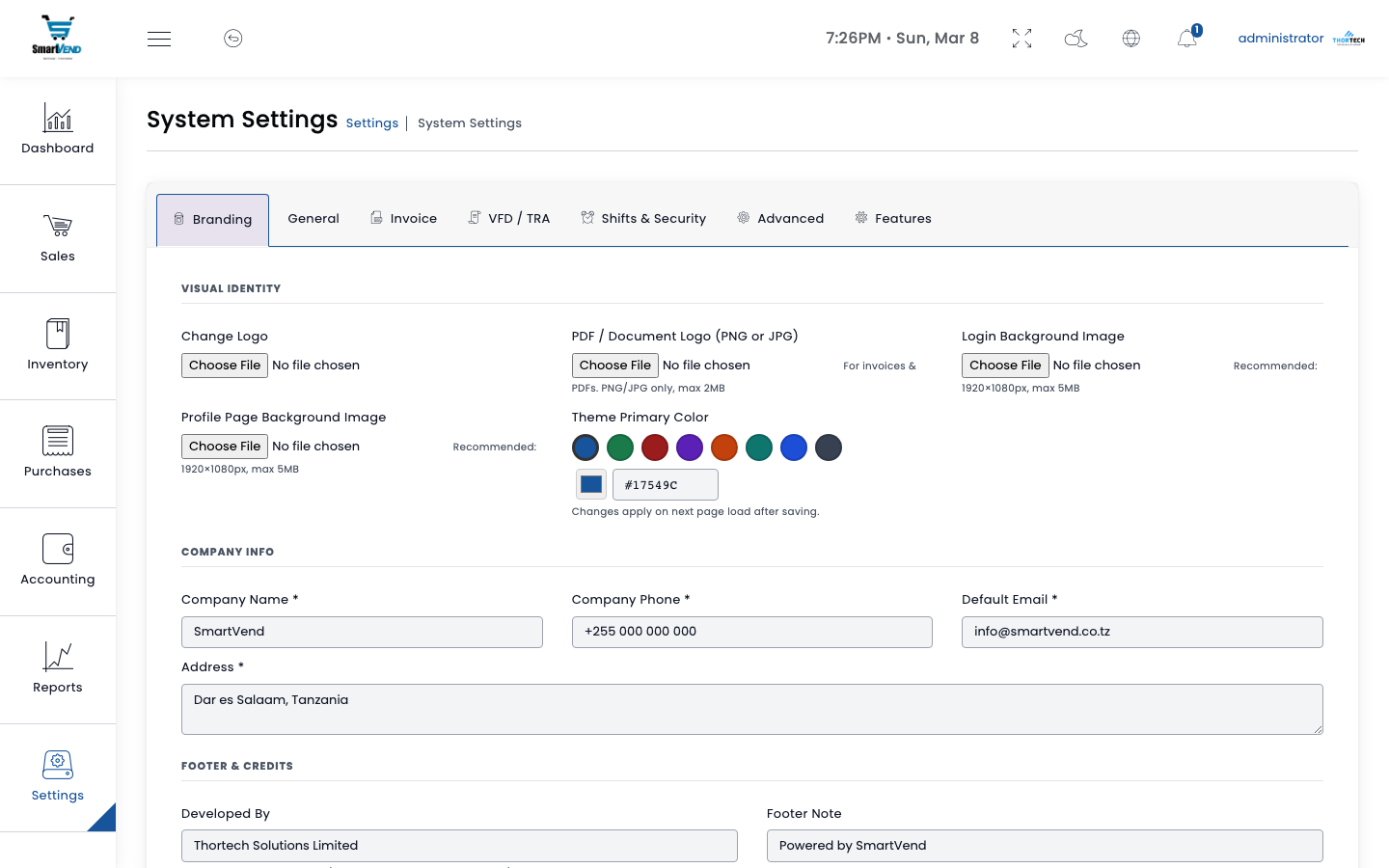
VFD settings tab — token is write-only (never displayed after saving)
| Field | Example Value | Notes |
|---|---|---|
| Environment | Live | Switch to Test for staging |
| API Token | •••••••• | Write-only — enter new value to replace |
| TIN | TAX-987654321 | Taxpayer Identification Number |
| VRN | VAT-001234-L | VAT Registration Number (optional) |
| Serial Number | 10TZ100006 | Device serial from TRA |
| UIN | XXXXXXXX | Unit Identification Number |
| Tax Office | Ilala Tax Region | |
| Invoice Color | #17549C | Accent color on printed receipts |
Z-Report
The daily Z-Report summarises all VFD-submitted transactions for a given date. Navigate to Reports → VFD Z-Report, select a date, and click Fetch.
Reports
Over 40 report types covering sales, purchases, stock, finance, customers, suppliers, and VFD compliance. All reports accept common query parameters: from (start date), to (end date), warehouse_id, and where applicable user_id, client_id, or provider_id.
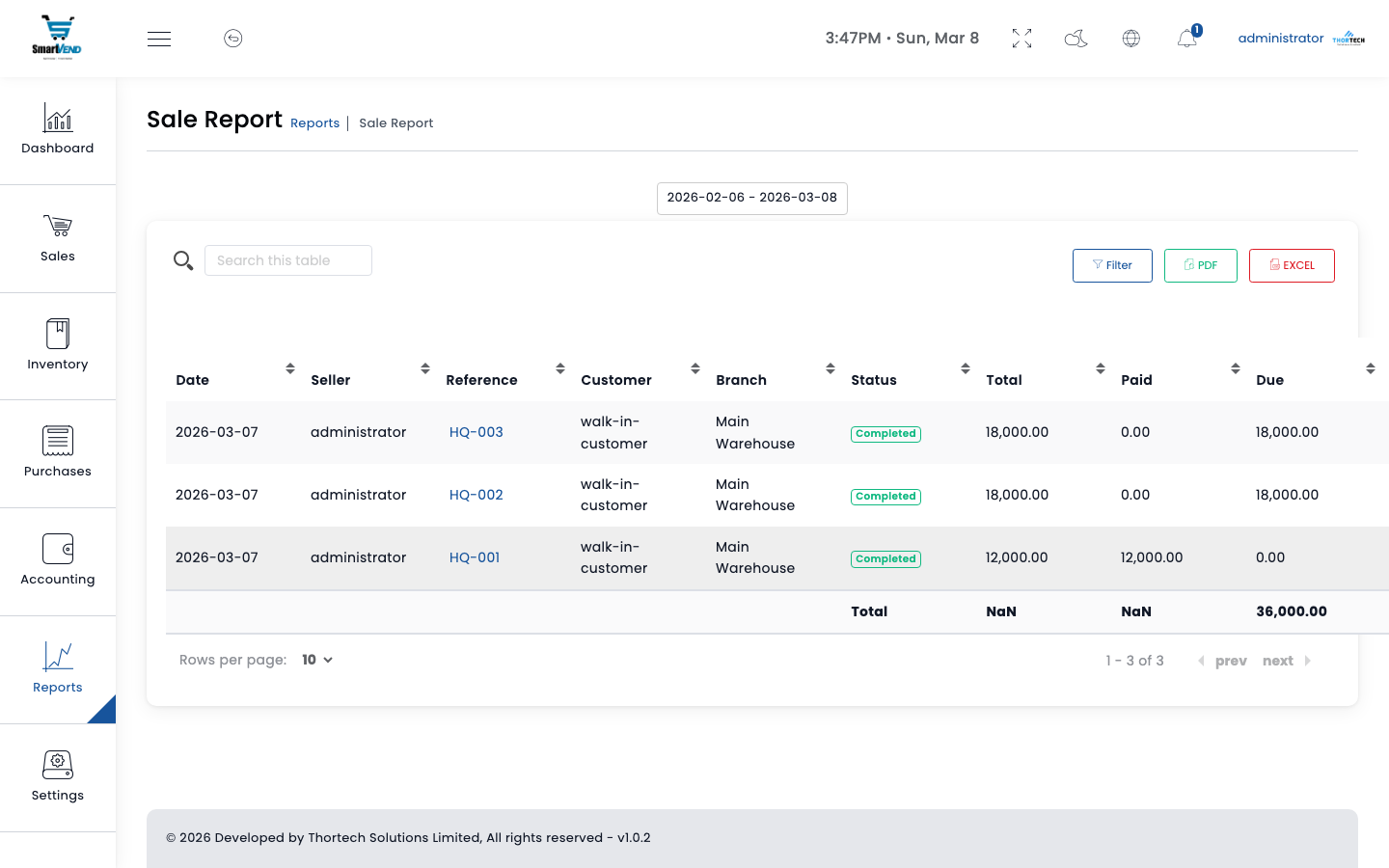
Sales report with date range filter and warehouse selector
Sales Reports
| Report | Path | Description |
|---|---|---|
| Sales Report | /api/report/sales | All sales with totals, filtered by date, warehouse, client |
| Sales by User | /api/report/get_sales_by_user | Sales breakdown per salesperson |
| Sales by Product | /api/report/get_sales_by_product | Revenue and quantity per product |
| Product Sales Detail | /api/report/sale_products_details | Line-item details across all sales |
| Daily Transactions | /api/report/daily-transactions | Day-by-day transaction summary |
| Monthly Transactions | /api/report/monthly-transactions | Month-by-month comparison |
| Last Sales | /api/report/get_last_sales | Most recent sales with quick summary |
| Top Products | /api/report/top_products | Best-selling products ranked by revenue |
| Top Customers | /api/report/top_customers | Highest-revenue customers ranked |
| Sales by Warehouse | /api/report/sales_warehouse | Revenue comparison across all warehouses |
| Quotations by User | /api/report/get_quotations_by_user | Quotation activity per salesperson |
Purchase Reports
| Report | Path | Description |
|---|---|---|
| Purchases Report | /api/report/purchases | All purchases with totals, by date and supplier |
| Purchases by User | /api/report/get_purchases_by_user | Purchase activity per buyer/user |
| Purchases by Product | /api/report/get_purchases_by_product | Cost and quantity per product purchased |
| Product Purchase Report | /api/report/product_purchases_report | Comprehensive product purchasing history |
| Purchase Returns by User | /api/report/get_purchase_return_by_user | Returns initiated per user |
Stock & Inventory Reports
| Report | Path | Description |
|---|---|---|
| Current Stock | /api/report/stock | Stock level for every product at every warehouse |
| Low Stock Alerts | /api/report/stock_alert | Products below their minimum reorder level |
| Warehouse Report | /api/report/warehouse_report | Full activity (sales/purchases/transfers) per warehouse |
| Warehouse Stock Count | /api/report/warhouse_count_stock | Physical stock count comparison per warehouse |
| Stock History | /api/report/stock-history | All movements (sales, purchases, adjustments, transfers) per product |
| Stock Valuation | /api/report/stock-valuation | Cost value of current inventory per product |
| Inventory Valuation Summary | /api/report/inventory_valuation_summary | Total inventory value by category |
| Yearly Stock Summary | /api/report/yearly-stock-summary | Year-over-year stock movement analysis |
| Transactions by Category | /api/report/transactions-by-category | Sales and purchase volumes grouped by product category |
| Transfers by User | /api/report/get_transfer_by_user | Inter-warehouse transfer activity per user |
| Adjustments by User | /api/report/get_adjustment_by_user | Stock adjustment history per user |
Client & Supplier Reports
| Report | Path | Description |
|---|---|---|
| Client Report | /api/report/client | All clients with total purchases, balance |
| Client Statement | /api/report/client/{id} | Full transaction history for one client |
| Client Sales | /api/report/client_sales | Sales per client over a date range |
| Client Payments | /api/report/client_payments | Payment history per client |
| Client Returns | /api/report/client_returns | Return history per client |
| Client PDF | /api/report/client_pdf/{id} | Download client statement as PDF |
| Supplier Report | /api/report/provider | All suppliers with total purchases, balance |
| Supplier Statement | /api/report/provider/{id} | Full transaction history for one supplier |
| Supplier Purchases | /api/report/provider_purchases | Purchases per supplier |
| Supplier PO | /api/report/provider_purchases_order | Purchase orders per supplier |
| Supplier Payments | /api/report/provider_payments | Payments made to each supplier |
| Supplier Returns | /api/report/provider_returns | Returns sent to each supplier |
Financial Reports
| Report | Path | Description |
|---|---|---|
| Profit & Loss | /api/report/profit_and_loss | Revenue minus COGS and expenses over a period |
| Report Dashboard | /api/report/report_dashboard | Summary KPI cards for the reports overview page |
| Payment Chart | /api/report/payment_chart | Visual chart of incoming vs outgoing payments |
| Expenses by Warehouse | /api/report/expenses_warehouse | Operating expenses per branch |
| Sale Returns by Warehouse | /api/report/returns_sale_warehouse | Sales return values per warehouse |
| Purchase Returns by Warehouse | /api/report/returns_purchase_warehouse | Purchase return values per warehouse |
| Users Report | /api/report/users | Activity summary (sales, purchases, etc.) per user |
| Expenses Report | /api/report/expenses_report | All expenses over a date range, filterable by warehouse and category |
| Deposits Report | /api/report/deposits_report | All deposits lodged over a date range, filterable by warehouse |
| Average Cost by Product | /api/report/get_average_cost_by_product | Weighted average purchase cost per product for COGS analysis |
| Average Cost (Chart) | /api/report/averageCost | Chart data for average cost trend over time — used in the Analytics dashboard |
Users & Roles
SmartVend uses role-based access control (RBAC). Every action in the system is gated behind a named permission. Roles group permissions together, and users are assigned one or more roles. This ensures each staff member can only access what their job requires.
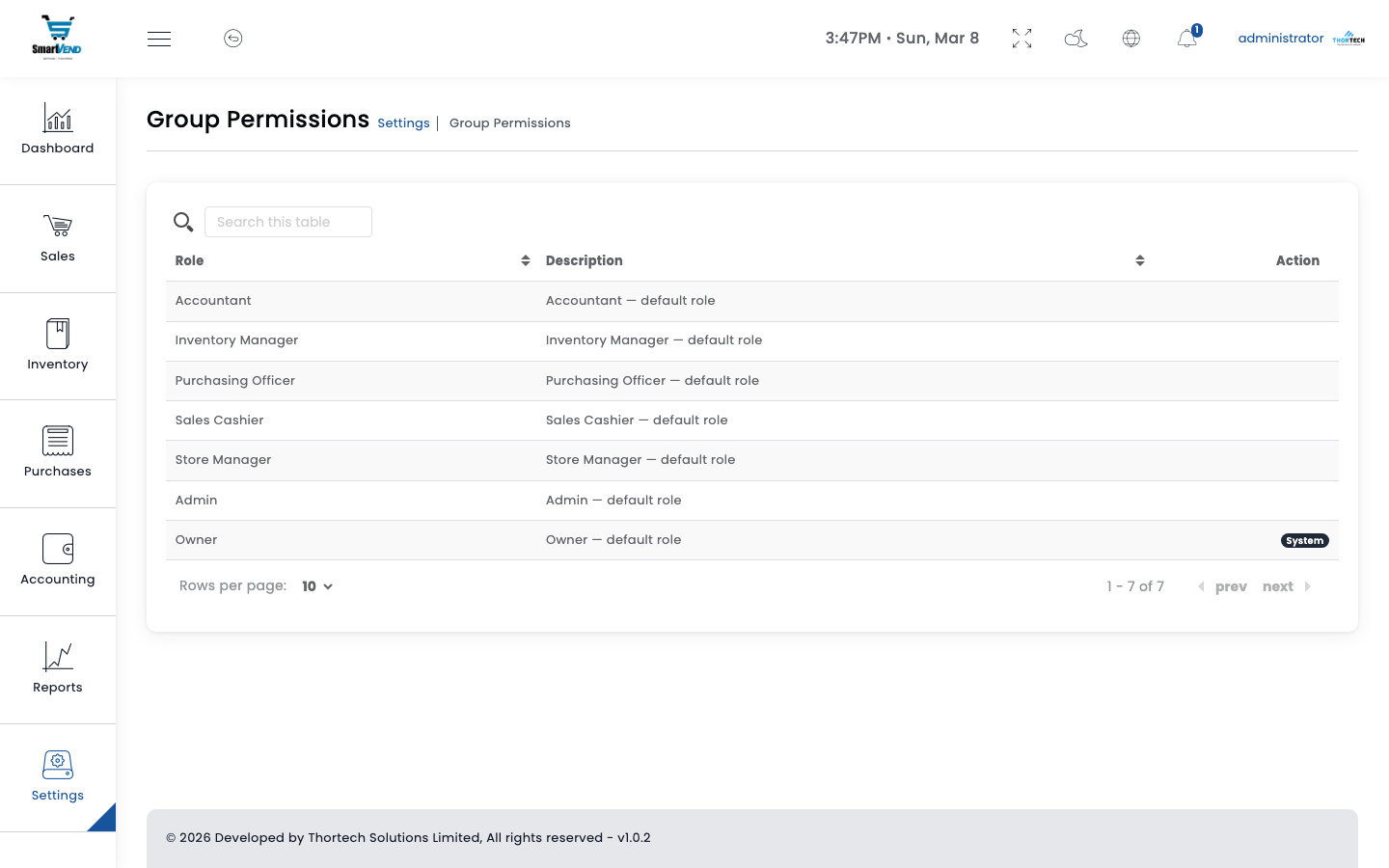
Figure 11 — Roles and permissions management
User Types
Super Admin
- Bypasses all permission checks automatically — no role assignment needed
- Full access to every module, every action, every record
- Can create, edit, and delete other users including admins
- Can toggle any user active/inactive
Regular Users
- Must be assigned at least one role
- Access determined by the union of permissions in all their roles
- Navigation menu items are hidden when the user lacks the required permission
- API enforces permissions server-side — UI hiding alone is not the security boundary
User Fields
| Field | Example | Notes |
|---|---|---|
| Name | Jane Smith | Display name throughout the system |
| staff@yourbusiness.com | Used for login and system notifications | |
| Password | •••••••• | Bcrypt hashed. Minimum 8 characters. |
| Phone | +000 712 345 678 | Optional — used for internal SMS alerts |
| Role(s) | Cashier, Reports Viewer | Multiple roles can be assigned simultaneously |
| Avatar | (Photo upload) | Displayed in the top navigation bar |
| Is Active | Yes | Inactive users cannot log in even with valid credentials |
Roles & Permissions
Roles are created at Settings → Roles. When creating a role, tick the permissions it should include. A user with the "Cashier" role would typically have Pos_view but not system_settings.
Permission Naming Convention
Format: ModuleName_action — e.g. Sales_add, Purchases_view
| Permission | Module | Access Granted |
|---|---|---|
| Sales | ||
Sales_view | Sales | View sales list and individual sale details |
Sales_add | Sales | Create new sales invoices |
Sales_edit | Sales | Edit existing sales invoices |
Sales_delete | Sales | Delete sales (soft-delete) |
| Point of Sale | ||
Pos_view | POS | Access the POS terminal interface and process checkout |
| Quotations | ||
Quotations_view | Quotations | View quotation list and details |
Quotations_add | Quotations | Create new price quotations |
Quotations_edit | Quotations | Edit draft or sent quotations |
Quotations_delete | Quotations | Delete quotations |
| Purchases & GRN | ||
Purchases_view | Purchases | View purchase invoices and history |
Purchases_add | Purchases | Create purchase invoices |
Purchases_edit | Purchases | Edit existing purchase invoices |
Purchases_delete | Purchases | Delete purchase invoices |
PurchaseOrders_view | PO & GRN | View purchase orders and GRNs |
PurchaseOrders_add | PO & GRN | Create purchase orders and GRNs |
PurchaseOrders_approve | PO & GRN | Approve purchase orders and GRNs — updates stock on GRN approval |
| Returns | ||
Returns_view | Returns | View sale and purchase return documents |
Returns_add | Returns | Create sale or purchase return documents |
Returns_approve | Returns | Approve returns — reverses stock and financial entries |
| Clients & Providers | ||
Clients_view | Clients | View customer list and profiles |
Clients_add | Clients | Create new customers |
Clients_edit | Clients | Edit customer details |
Clients_delete | Clients | Delete customer records |
Providers_view | Providers | View supplier list and profiles |
Providers_add | Providers | Create new suppliers |
Providers_edit | Providers | Edit supplier details |
Providers_delete | Providers | Delete supplier records |
| Payments | ||
Payments_view | Payments | View all payment records (sale, purchase, PO) |
Payments_add | Payments | Record new payments against sales or purchases |
Payments_delete | Payments | Delete payment records (reverses balance) |
| Expenses & Deposits | ||
Expenses_view | Expenses | View expense records |
Expenses_add | Expenses | Create expense records |
Expenses_edit | Expenses | Edit expense records |
Expenses_delete | Expenses | Delete expense records |
Expenses_approve | Expenses | Approve pending expenses before payment |
Deposits_view | Deposits | View deposit records |
Deposits_add | Deposits | Record new cash deposits |
| Inventory | ||
Products_view | Products | View product catalog and stock levels |
Products_add | Products | Create new products |
Products_edit | Products | Edit product details, pricing, and variants |
Products_delete | Products | Delete product records |
Adjustments_view | Adjustments | View stock adjustment documents |
Adjustments_add | Adjustments | Create stock adjustment documents |
Adjustments_approve | Adjustments | Approve (or reject) stock adjustments — typically manager only |
Transfers_view | Transfers | View inter-warehouse stock transfers |
Transfers_add | Transfers | Create new stock transfer documents |
Transfers_edit | Transfers | Edit transfers before approval |
Transfers_approve | Transfers | Approve, dispatch, and receive stock transfers |
| Accounting | ||
Accounts_view | Accounts | View chart of accounts and journal entries |
Accounts_add | Accounts | Create new accounts and post manual journal entries |
| Reports | ||
Reports_sales | Reports | View sales reports section |
Reports_purchases | Reports | View purchase reports section |
Reports_financial | Reports | View financial reports (P&L, accounts, expenses) |
Reports_stock | Reports | View stock, inventory valuation, and stock movement reports |
| Administration | ||
users_view | Users | View user list and profiles |
users_add | Users | Create new user accounts |
users_edit | Users | Edit user profiles and change role assignments |
roles_view | Roles | View roles and their permission sets |
roles_add | Roles | Create new roles |
roles_edit | Roles | Edit role permissions |
audit_logs_view | Audit Logs | View the audit log of all create/update/delete actions with before/after values |
system_settings | Settings | Modify all system settings — Super Admin only recommended |
mail_settings | Settings | Configure SMTP email and SMS gateway settings |
Warehouses_view | Warehouses | View warehouse list and details |
Warehouses_add | Warehouses | Create and edit warehouse locations |
Categories_view | Catalog | View product categories |
Categories_add | Catalog | Create and edit product categories and brands |
Units_view | Catalog | View units of measure |
Units_add | Catalog | Create and edit units of measure |
Currencies_view | Catalog | View currency list |
Currencies_add | Catalog | Add and configure currencies |
backup | Maintenance | Trigger database backups and manage backup files |
Suggested Role Configurations
| Role Name | Typical Permissions | Who Gets It |
|---|---|---|
| Cashier | Pos_view, Sales_view | Counter staff running POS |
| Sales Manager | Sales_view/add/edit/delete, Clients_view/add, Quotations_view/add, Reports_sales | Field sales team leader |
| Store Manager | Adjustments_add/approve, Transfers_view/add/approve, Purchases_view, GRN_add/approve | Warehouse / stock controller |
| Accounts | Expenses_view/add, Deposits_view/add, Payments_view, Reports_financial | Finance / accounting staff |
| Reports Viewer | Reports_sales, Reports_purchases, Reports_financial | Management (read-only) |
API Endpoints
| Method | Endpoint | Description |
|---|---|---|
| GET | /api/users | List all users (paginated) |
| POST | /api/users | Create a new user — assign name, email, password, roles |
| PUT | /api/users/{id} | Update user profile or change their role assignment |
| PUT | /api/users_switch_activated/{id} | Toggle user active/inactive status |
| GET | /api/roles | List all roles with their permission sets |
| POST | /api/roles | Create a new role with selected permissions |
| PUT | /api/roles/{id} | Update role permissions |
| DELETE | /api/roles/{id} | Delete role (users keep their other roles) |
| GET | /api/user | Get current authenticated user info and permissions |
System Settings
Configure all aspects of SmartVend from a single Settings page. Settings are stored in the database and take effect immediately — no server restart required. Only Super Admins or users with the system_settings permission can access this page.
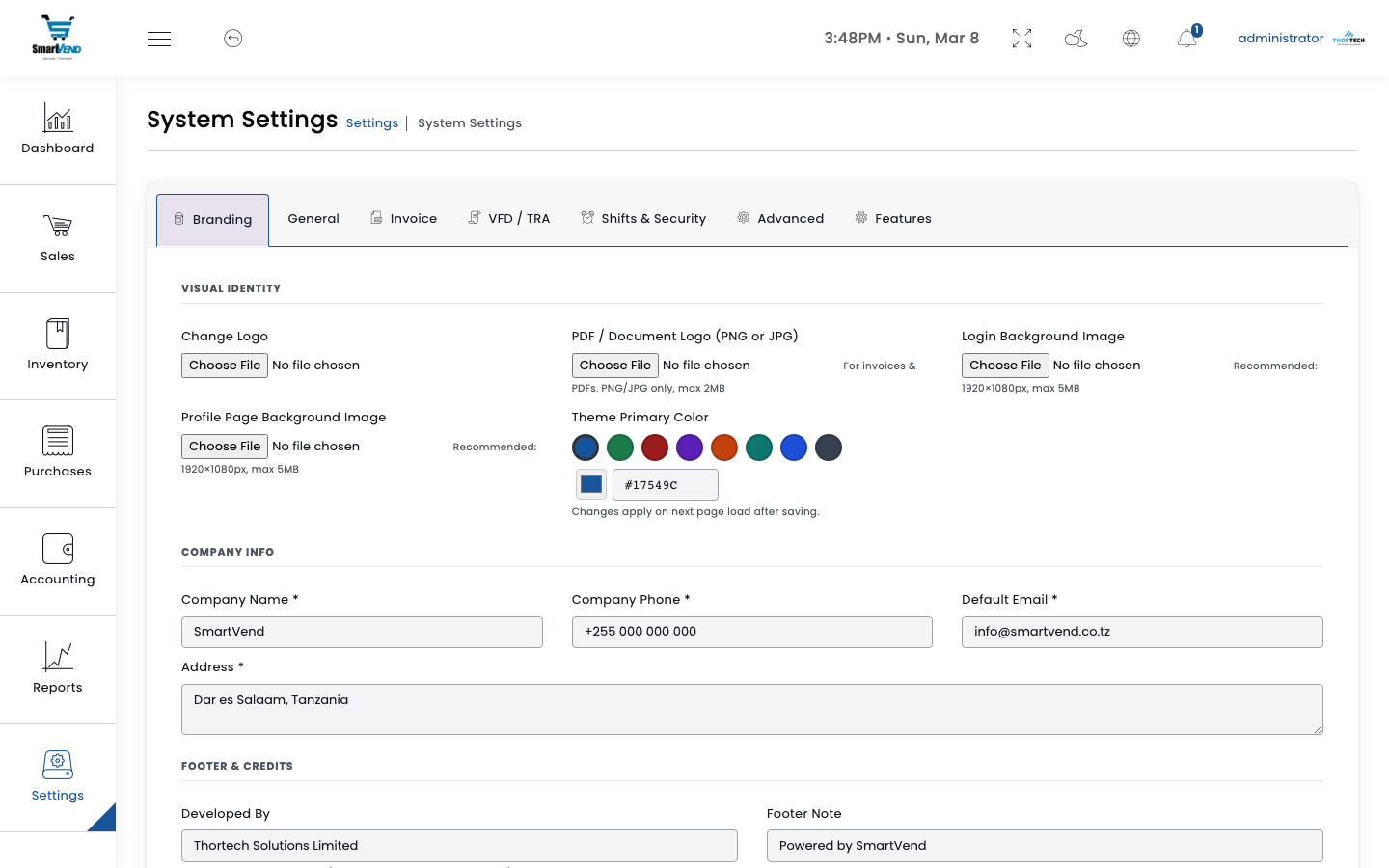
Figure 12 — System settings with tabbed navigation
Company Information
Company info appears on all printed documents (invoices, POs, receipts, statements) and on the login page branding.
| Setting | Example | Where It Appears |
|---|---|---|
| Company Name | Your Business Ltd | Login page, PDF header, all documents |
| Address | 123 Main Street, City Centre | PDF documents |
| Phone | +000 100 200 300 | PDF documents, footer |
| info@yourbusiness.com | PDF documents, email from address | |
| Website | www.yourbusiness.com | PDF footer |
| Main Logo | (PNG upload) | Top-left of all pages (navbar) |
| PDF Logo | (PNG upload) | Printed on invoice/receipt PDFs |
Invoice & Currency Settings
| Setting | Example | Notes |
|---|---|---|
| Default Currency | TZS — Tanzanian Shilling | Shown on all invoices and reports. Must match a currency in the Currencies list. |
| Default Tax Rate | 18% | Pre-filled when creating sales/purchases. Can be overridden per document. |
| Tax Method | Inclusive / Exclusive | Whether product prices include tax (inclusive) or tax is added on top (exclusive) |
| Invoice Prefix | SL | Prepended to sale references: SL-MAIN-20260308-001 |
| Invoice Footer Note | Thank you for your business! | Printed at the bottom of every sale PDF |
| Payment Terms | Net 30 days | Shown on invoices as payment due notice |
| Decimal Separator | . (period) | Controls number formatting on documents |
Feature Flags
Feature flags allow you to enable or disable optional system behaviours without code changes. Toggle them in Settings → Feature Flags.
| Flag | When Enabled | Default |
|---|---|---|
| VFD Integration | POS checkout automatically submits to TRA VFD. Disable for testing environments or when VFD is not configured. | On |
| Line Item Descriptions | A free-text description field appears for each line item on sale/purchase forms | Off |
| Shift Requirement | Cashiers must open a shift before making any POS sale. System blocks checkout if no active shift exists. | Off |
| Low Stock Notifications | System emails configured addresses when a product falls below its minimum reorder level | Off |
POS Shift Configuration
When the shift requirement is enabled, this section controls how shifts behave.
| Setting | Example | Notes |
|---|---|---|
| Require Shift | Yes | If Yes, POS checkout is blocked without an active shift for the logged-in user |
| Auto-End After (hours) | 10 | Shifts older than this are automatically closed — prevents forgetting to close at end of day |
POST /api/settings/shift-config.All Settings Tabs Summary
| Tab | What You Can Configure |
|---|---|
| Company Info | Company name, address, phone, email, logos, website |
| Invoice & Currency | Default currency, tax rate, invoice prefix, footer note, payment terms |
| VFD & TRA | Environment (test/live), API token, TIN, VRN, serial number, UIN, tax office, brand colour |
| Email (SMTP) | Mail host, port, username, password, encryption method, from name |
| SMS Gateway | Provider, API token, sender ID, base URL |
| Feature Flags | VFD integration, line descriptions, shift requirement, low-stock alerts |
| POS & Shift | Enable shift requirement, auto-end timeout |
| Warehouses | Add/edit warehouse locations and per-branch VFD activation |
| Modules | Install, enable, disable, and update add-on module packages |
Module Management
SmartVend supports installable add-on modules — ZIP packages that extend the system with new features without modifying core files. Modules are managed from Settings → Modules.
| Action | How |
|---|---|
| View installed modules | Settings → Modules — lists all installed modules with version and status |
| Install a new module | Click Upload Module, select the .zip package provided by your vendor |
| Enable / disable a module | Toggle the Active switch — disabled modules are not loaded and do not affect performance |
| Update a module | Upload the new version ZIP — the system replaces files and runs any module migrations automatically |
API Endpoints
| Method | Endpoint | Description |
|---|---|---|
| GET | /api/get_modules_info | List all installed modules with name, version, and active status |
| POST | /api/update_status_module | Enable or disable a module ({ module: "ModuleName", status: true }) |
| POST | /api/upload_module | Upload a module ZIP package (multipart/form-data) |
API Reference
RESTful JSON API. All endpoints require Authorization: Bearer <token> except the public endpoints listed below. Rate limit: 120 req/min per user (auth: 5/min).
Authentication
# 1. Get access token (rate-limited: 5/min)
POST /api/getAccessToken
Content-Type: application/json

{
  "username":      "admin@example.com",
  "password":      "your_password",
  "client_id":     2,
  "client_secret": "get_from_oauth_clients_table",
  "grant_type":    "password"
}

# Response
{
  "access_token": "eyJ0eXAiOiJKV1Qi...",
  "token_type":   "Bearer",
  "expires_in":   31536000
}

# 2. Use in all subsequent requests
GET /api/sales
Authorization: Bearer eyJ0eXAiOiJKV1Qi...

# 3. Logout
POST /api/logout
client_id and client_secret are generated by php artisan passport:install. Find the Password Grant client record in the oauth_clients database table.Public Endpoints (No Auth)
| Method | Endpoint | Description |
|---|---|---|
| GET | /api/health | Database health check — returns status and version |
| GET | /api/branding | Company name, logo URL, and theme color for login page |
| GET | /api/ping | Keep-alive / connection check |
| POST | /api/getAccessToken | OAuth2 password grant — returns Bearer token |
| POST | /api/password/create | Send password reset link to email |
| POST | /api/password/reset | Complete password reset with token |
Response Format
// Paginated list
{
  "data": [ { "id": 1, ... } ],
  "current_page": 1,
  "last_page":    5,
  "per_page":     10,
  "total":        48
}

// Single resource
{ "id": 1, "reference": "SL-MAIN-20260308-001", ... }

// Error
{ "message": "You are not authorized", "status": 403 }

// Validation error
{ "errors": { "amount": ["The amount field is required"] } }
Request & Response Examples
Authorization: Bearer <token> and Content-Type: application/json headers are set. Amounts are in Tanzanian Shilling (TZS).POST /api/sales — Create Sale
// REQUEST
POST /api/sales
{
  "warehouse_id":  1,
  "client_id":     12,
  "date":          "2026-03-08",
  "discount":      0,
  "shipping":      5000,
  "tax_rate":      18,
  "tax_method":    "inclusive",
  "notes":         "Deliver to cold storage B2",
  "payment":       200000,
  "account_id":    2,
  "payment_method": "Bank Transfer",
  "details": [
    {
      "product_id": 1,
      "quantity":   25,
      "unit_price": 12500,
      "discount":   0,
      "unit_id":    1
    }
  ]
}

// RESPONSE 200
{
  "id":             382,
  "reference":     "SL-MAIN-20260308-001",
  "client_id":     12,
  "client_name":   "City Mart Traders Ltd",
  "warehouse_id":  1,
  "date":          "2026-03-08",
  "GrandTotal":    317500,
  "paid_amount":   200000,
  "due_amount":    117500,
  "payment_status": "partial",
  "vfd_status":    "submitted",
  "vfd_receipt_no": "20260308-MAIN-00382"
}
GET /api/sales/{id} — Sale Details
// REQUEST
GET /api/sales/382

// RESPONSE 200
{
  "id":              382,
  "reference":      "SL-MAIN-20260308-001",
  "date":           "2026-03-08",
  "warehouse":      "Headquarters",
  "client":         "City Mart Traders Ltd",
  "GrandTotal":     317500,
  "paid_amount":    200000,
  "due_amount":     117500,
  "payment_status": "partial",
  "details": [
    {
      "product_name": "Broiler Chicken (Dressed)",
      "quantity":     25,
      "unit_price":   12500,
      "total":        312500
    }
  ],
  "payments": [
    {
      "id": 85,
      "Ref":    "PAY-SL-2026-0085",
      "date":   "2026-03-08",
      "montant": 200000,
      "account": "CRDB Bank Account"
    }
  ]
}
POST /api/payment_sale — Record Sale Payment
// REQUEST
POST /api/payment_sale
{
  "sale_id":        382,
  "client_id":      12,
  "account_id":     2,
  "date":           "2026-03-09",
  "montant":        117500,
  "reglement":      "Bank Transfer",
  "notes":          "Final settlement"
}

// RESPONSE 200
{
  "id":             86,
  "Ref":            "PAY-SL-2026-0086",
  "date":           "2026-03-09",
  "montant":        117500,
  "reglement":      "Bank Transfer",
  "sale_id":        382,
  "client_id":      12,
  "account_id":     2
}
POST /api/purchases — Create Purchase Invoice
// REQUEST
POST /api/purchases
{
  "provider_id":   5,
  "warehouse_id":  1,
  "date":          "2026-03-08",
  "discount":      2,
  "shipping":      15000,
  "tax_rate":      18,
  "tax_method":    "exclusive",
  "grn_id":        14,
  "notes":         "Linked to GRN-000014",
  "payment":       1000000,
  "account_id":    2,
  "details": [
    {
      "product_id": 1,
      "quantity":   200,
      "cost":       8000,
      "discount":   0,
      "unit_id":    3
    }
  ]
}

// RESPONSE 200
{
  "id":              1042,
  "Ref":             "PR_1042",
  "provider_name":   "Prime Distributors Ltd",
  "GrandTotal":      1888000,
  "paid_amount":     1000000,
  "due_amount":      888000,
  "payment_status":  "partial",
  "grn_id":          14
}
POST /api/expenses — Create Expense
// REQUEST
POST /api/expenses
{
  "warehouse_id":    1,
  "account_id":      1,
  "expense_category_id": 3,
  "description":    "Delivery vehicle fuel — City to Region route",
  "amount":         85000,
  "date":           "2026-03-08",
  "note":           "Supplier receipt attached"
}

// RESPONSE 201
{
  "id":                  23,
  "Ref":                 "EXP-2026-0023",
  "description":        "Delivery vehicle fuel — City to Region route",
  "amount":             85000,
  "date":               "2026-03-08",
  "status":             "pending",
  "expense_category":   "Fuel & Transport",
  "warehouse":          "Headquarters"
}
POST /api/expenses/approve/{id} — Approve Expense
// REQUEST (no body required)
POST /api/expenses/approve/23

// RESPONSE 200
{
  "id":      23,
  "status": "approved",
  "amount": 85000,
  "message": "Expense approved. Account 111000 reduced by 85000."
}
POST /api/grn/create — Create GRN
// REQUEST — Direct GRN (no prior PO)
POST /api/grn/create
{
  "order_id":      null,
  "provider_id":   5,
  "warehouse_id":  1,
  "date":          "2026-03-08",
  "notes":         "15 birds rejected on QC — disease symptoms",
  "details": [
    {
      "product_id": 1,
      "quantity":   200,
      "cost":       8000
    }
  ]
}

// RESPONSE 200
{
  "id":             14,
  "Ref":            "GRN-000014",
  "provider_name": "Prime Distributors Ltd",
  "warehouse":     "Headquarters",
  "date":          "2026-03-08",
  "status":        "pending",
  "order_id":      null
}
POST /api/grn/approve/{id} — Approve GRN (updates stock)
// REQUEST (no body)
POST /api/grn/approve/14

// RESPONSE 200
{
  "id":      14,
  "Ref":     "GRN-000014",
  "status": "approved",
  "message": "Stock updated at Main Warehouse: Product A +200 units."
}
POST /api/transfers — Create Stock Transfer
// REQUEST
POST /api/transfers
{
  "from_warehouse_id": 1,
  "to_warehouse_id":   4,
  "date":              "2026-03-08",
  "notes":             "Weekly East Depot restock — cold chain truck 7am",
  "details": [
    {
      "product_id": 1,
      "quantity":   80,
      "unit_id":    1
    }
  ]
}

// RESPONSE 200
{
  "id":              19,
  "Ref":             "TR-2026-0019",
  "from_warehouse": "Main Warehouse",
  "to_warehouse":   "East Depot",
  "date":           "2026-03-08",
  "status":         "draft"
}
POST /api/adjustments — Create Stock Adjustment
// REQUEST
POST /api/adjustments
{
  "warehouse_id": 2,
  "date":         "2026-03-08",
  "notes":        "Freezer malfunction — product spoiled overnight",
  "details": [
    {
      "product_id": 3,
      "quantity":   15,
      "type":       "-"
    }
  ]
}

// RESPONSE 200
{
  "id":          11,
  "Ref":         "ADJ-2026-0011",
  "warehouse":  "North Branch",
  "date":        "2026-03-08",
  "status":      "pending"
}
POST /api/clients — Create Client
// REQUEST
POST /api/clients
{
  "name":           "City Mart Traders Ltd",
  "phone":          "+000 712 345 678",
  "email":          "orders@citymart.com",
  "adresse":        "City Centre",
  "city":           "Dar es Salaam",
  "tax_number":     "TAX-123-456-789",
  "credit_limit":   5000000,
  "opening_balance": 0
}

// RESPONSE 201
{
  "id":             12,
  "name":           "City Mart Traders Ltd",
  "phone":          "+000 712 345 678",
  "email":          "orders@citymart.com",
  "tax_number":     "TAX-123-456-789",
  "credit_limit":   5000000,
  "total_amount":   0,
  "paid_amount":    0,
  "due_amount":     0
}
GET /api/dashboard_data — Dashboard KPIs
// REQUEST
GET /api/dashboard_data?start_date=2026-03-01&end_date=2026-03-08&warehouse_id=1

// RESPONSE 200
{
  "total_sales":     4850000,
  "total_purchases": 2340000,
  "total_expenses":  480000,
  "total_profit":    2030000,
  "top_products": [
    { "name": "Broiler Chicken (Dressed)", "revenue": 3125000 },
    { "name": "Chicken Wings",             "revenue": 840000  }
  ],
  "stock_alerts": [
    { "product": "Product A", "warehouse": "NORTH", "qty": 45, "alert": 50 },
    { "product": "Product B",  "warehouse": "SOUTH", "qty": 0,  "alert": 20 }
  ]
}
GET /api/sales — List Sales (Paginated)
// REQUEST
GET /api/sales?page=1&per_page=10&start_date=2026-03-01&end_date=2026-03-08&warehouse_id=1&search=Karibu

// RESPONSE 200
{
  "data": [
    {
      "id":              382,
      "reference":      "SL-MAIN-20260308-001",
      "date":           "2026-03-08",
      "client_name":    "City Mart Traders Ltd",
      "warehouse":      "Headquarters",
      "GrandTotal":     317500,
      "paid_amount":    200000,
      "due_amount":     117500,
      "payment_status": "partial",
      "vfd_status":     "submitted"
    }
  ],
  "current_page": 1,
  "last_page":    3,
  "per_page":     10,
  "total":        28
}
Common Error Responses
// 401 Unauthenticated
{ "message": "Unauthenticated." }

// 403 Forbidden (permission missing)
{ "message": "You are not authorized to perform this action.", "status": 403 }

// 422 Validation Error
{
  "message": "The given data was invalid.",
  "errors": {
    "warehouse_id": ["The warehouse id field is required."],
    "details":      ["The details field must have at least 1 item."]
  }
}

// 429 Rate Limited
{ "message": "Too Many Attempts. Please retry after 60 seconds." }

// 502 VFD Upstream Error
{ "message": "VFD service unavailable. The receipt will be queued for retry.", "status": 502 }
All Endpoints by Module
Dashboard & System
| Method | Endpoint | Description |
|---|---|---|
| GET | /api/dashboard_data | KPI cards: sales, purchases, expenses, profit |
| POST | /api/clear_cache | Clear application cache |
| GET | /api/get_version_info | Application version and update info |
| GET | /api/user | Authenticated user info |
| GET | /api/audit-logs | Paginated audit log (filterable) |
| GET | /api/audit-logs/stats | Activity count summary |
Products & Catalog
| Method | Endpoint | Description |
|---|---|---|
| GET | /api/products | List products |
| POST | /api/products | Create product |
| GET | /api/products/{id} | Product details + stock |
| PUT | /api/products/{id} | Update product |
| DELETE | /api/products/{id} | Delete product |
| GET | /api/categories | List categories (CRUD available) |
| GET | /api/brands | List brands (CRUD available) |
| GET | /api/units | List units (CRUD available) |
| GET | /api/currencies | List currencies (CRUD available) |
| GET | /api/packages | Combo/bundle products |
| GET | /api/get_products_stock_alerts | Products below reorder level |
| POST | /api/products/import/csv | Bulk import products |
| GET | /api/count_stock | Get current stock for physical count |
| POST | /api/store_count_stock | Submit physical count (reconciles stock) |
Sales
| Method | Endpoint | Description |
|---|---|---|
| GET | /api/sales | List sales |
| POST | /api/sales | Create sale |
| GET | /api/sales/{id} | Sale details |
| PUT | /api/sales/{id} | Update sale |
| DELETE | /api/sales/{id} | Delete sale |
| GET | /api/sale_pdf/{id} | Download sale PDF |
| GET | /api/sales/{id}/preview-vfd | VFD receipt preview |
| POST | /api/sales/{id}/resubmit-vfd | Resubmit to VFD |
| GET | /api/payment_sale | List sale payments |
| POST | /api/payment_sale | Record sale payment |
| GET | /api/returns/sale | List sale returns |
| POST | /api/returns/sale | Create sale return |
| POST | /api/returns/sale/approve/{id} | Approve sale return (restores stock) |
POS
| Method | Endpoint | Description |
|---|---|---|
| POST | /api/pos/create_pos | Complete POS checkout |
| GET | /api/pos/get_products_pos | Products for POS at active warehouse |
| GET | /api/pos/data_create_pos | POS initialization data |
| POST | /api/pos/create_draft | Save POS cart as draft |
| GET | /api/get_draft_sales | List saved drafts |
| DELETE | /api/remove_draft_sale/{id} | Delete draft |
| POST | /api/shift-sessions/start | Open shift |
| POST | /api/shift-sessions/end | Close shift |
| POST | /api/shift-sessions/approve | Approve shift |
Purchases & POs
| Method | Endpoint | Description |
|---|---|---|
| GET | /api/purchases | List purchases |
| POST | /api/purchases | Create purchase invoice |
| GET | /api/purchase_orders | List purchase orders |
| POST | /api/purchase_orders | Create purchase order |
| POST | /api/purchase_order/submit/{id} | Submit PO for approval |
| POST | /api/purchase_order/approve/{id} | Approve PO |
| POST | /api/grn/create | Create GRN (set order_id=null for Direct GRN) |
| GET | /api/grns | List all GRNs |
| GET | /api/grn/{id} | GRN details |
| POST | /api/grn/approve/{id} | Approve GRN — updates warehouse stock |
| GET | /api/get_receive_data/{grnId} | Pre-fill purchase form from GRN |
| GET | /api/get_order | POs, suppliers, warehouses for GRN creation form |
| GET | /api/payment_purchase | List purchase payments |
| POST | /api/payment_purchase | Record supplier payment |
Quotations
| Method | Endpoint | Description |
|---|---|---|
| GET | /api/quotations | List quotations |
| POST | /api/quotations | Create quotation |
| PUT | /api/quotations/{id} | Update quotation |
| DELETE | /api/quotations/{id} | Delete quotation |
| GET | /api/quote_pdf/{id} | Download quotation PDF |
| GET | /api/convert_to_sale_data/{id} | Convert quotation to sale |
Expenses, Deposits & Accounts
| Method | Endpoint | Description |
|---|---|---|
| GET | /api/expenses | List expenses |
| POST | /api/expenses | Create expense |
| POST | /api/expenses/approve/{id} | Approve expense |
| GET | /api/expenses_category | List expense categories |
| GET | /api/deposits | List deposits |
| POST | /api/deposits | Create deposit |
| GET | /api/accounts | List accounts (chart of accounts) |
| POST | /api/accounts | Create account |
| GET | /api/transfer_money | List account-to-account transfers |
| POST | /api/transfer_money | Transfer money between accounts |
| GET | /api/cash-collections | List cash collections |
| POST | /api/cash-collections | Record cash collection |
| GET | /api/cash-collections/global-summary | Total collections across all branches |
Transfers & Adjustments
| Method | Endpoint | Description |
|---|---|---|
| GET | /api/transfers | List stock transfers |
| POST | /api/transfers | Create transfer |
| POST | /api/transfer/approve/{id} | Approve transfer |
| POST | /api/transfer/complete/{id} | Mark completed (updates destination stock) |
| GET | /api/adjustments | List stock adjustments |
| POST | /api/adjustments | Create adjustment |
| POST | /api/adjustments/approve/{id} | Approve adjustment (updates stock + journal) |
VFD / TRA
| Method | Endpoint | Description |
|---|---|---|
| POST | /api/vfd/invoice | Submit a sale to VFD for tax receipt |
| GET | /api/vfd/invoice/{id} | Get VFD receipt status for a sale |
| GET | /api/vfd/z-report/{date} | Daily Z-Report (format: YYYY-MM-DD) |
| GET | /api/vfd/tax-report | Tax summary report from VFD |
| POST | /api/vfd/receipts | List/search VFD receipts |
Settings
| Method | Endpoint | Description |
|---|---|---|
| GET | /api/settings | Get all system settings |
| POST | /api/settings | Update system settings (company info, logo, currency, etc.) |
| POST | /api/settings/vfd-config | Update VFD API credentials and environment |
| POST | /api/settings/shift-config | Update shift session configuration |
| POST | /api/settings/feature-flags | Toggle optional features on/off |
| GET | /api/get_pos_Settings | POS-specific settings |
| PUT | /api/pos_settings/{id} | Update POS settings |
| GET | /api/get_sms_config | SMS gateway configuration |
| POST | /api/update_sms_config | Update SMS gateway settings |
| GET | /api/get_config_mail | SMTP mail configuration |
| PUT | /api/update_config_mail/{id} | Update SMTP settings |
| GET | /api/warehouses | List warehouses |
| POST | /api/warehouses | Create warehouse |
| PUT | /api/vfd_switch_activated/{id} | Toggle VFD on/off for a warehouse |
| GET | /api/roles | List roles with permissions |
| POST | /api/roles | Create role with permissions |
| GET | /api/users | List users |
| POST | /api/users | Create user |
| PUT | /api/users_switch_activated/{id} | Activate / deactivate user |
| GET | /api/get_backup | List database backups |
| GET | /api/generate_new_backup | Create new database backup |
?search=, ?page=, ?per_page=, ?sort_by=, ?sort_type=asc|desc, ?warehouse_id=, ?start_date=, ?end_date= where applicable.Stock Counting
Perform physical stock counts and reconcile discrepancies against system quantities.
Stock Count Workflow
How It Works
- Navigate to Products → Count Stock
- The system pre-fills each product with its current system quantity
- Enter the physically counted quantity for each product
- The difference column shows over/under stock
- Submit to apply — the system overwrites quantities and records the adjustment
- Preview CSV import for bulk counting via spreadsheet
Example Count Sheet
The system pre-fills current quantities. Count staff enter actual physical quantities. Differences are highlighted automatically — positive means found stock, negative means missing stock.
| Product | System Qty | Counted Qty | Difference | Likely Cause |
|---|---|---|---|---|
| Product A | 320 | 298 | –22 | Spoilage / damage / unrecorded write-off |
| Product B | 85 | 91 | +6 | Unrecorded receipt / supplier over-delivery |
| Product C | 45 | 45 | 0 | Matches — no action needed |
| Product D | 200 | 0 | –200 | Out of stock — not available in this warehouse |
Best Practices for Stock Counts
- Count during off-peak hours — early morning before operations begin, or after close of business
- Freeze transactions while counting — pause POS sales and ask warehouse staff to hold receipts until the count is complete
- Count by category, one product at a time — use the search / filter by category option to avoid mixing products
- Use the CSV export to print a blank count sheet, do the physical count on paper, then enter results in the system
- Investigate large discrepancies before submitting — check recent transfers, unapproved adjustments, or draft documents that may not be reflected in stock yet
- After submission, review the auto-created adjustment document in Stock Adjustments to verify the reconciliation is correct
- Run counts per warehouse — do not mix stock from different branches in the same count session
Stock Count API Endpoints
| Method | Endpoint | Description |
|---|---|---|
| GET | /api/count_stock?warehouse_id={id} | Return all products with current system quantities for a given warehouse |
| POST | /api/store_count_stock | Submit counted quantities — reconciles and overwrites stock levels |
| GET | /api/preview_count_stock/{filename} | Preview a CSV count file before submitting |
Stock Entries (Opening Stock)
Stock Entries are used to load initial stock quantities when setting up the system, or to record a full stock intake outside the normal GRN workflow. Unlike a stock count (which reconciles differences), a stock entry records a complete snapshot of quantities and costs per product. The entry stays in Draft until a manager approves it — at which point product quantities at the selected warehouse are updated.
Stock Entry Fields
| Field | Example | Notes |
|---|---|---|
| Reference | STK-2026-0003 | Auto-generated |
| Date | 08 March 2026 | Date of the physical stock intake |
| Warehouse | Main Warehouse | Quantities are applied to this warehouse only |
| Product(s) | Multiple lines | Each line: product, quantity, cost price |
| Status | Draft → Approved | No stock change until approved |
CSV Import for Stock Entries
Upload a CSV to populate a stock entry in bulk. Required columns: code or name, quantity. Optional: cost, price, unit, category, brand (used to auto-create the product if it does not yet exist).
API Endpoints
| Method | Endpoint | Description |
|---|---|---|
| GET | /api/stocks | List all stock entries (paginated) |
| POST | /api/stocks | Create a new stock entry (status: draft) |
| GET | /api/stocks/{id} | Stock entry detail with all product lines |
| PUT | /api/stocks/{id} | Edit stock entry before approval |
| DELETE | /api/stocks/{id} | Delete unapproved stock entry |
| GET | /api/stocks/detail/{id} | Line-item detail for a specific stock entry |
| POST | /api/stock/approve/{id} | Approve — updates warehouse stock quantities |
| POST | /api/stock/import | Import stock entry lines from CSV |
Cash Collections
Track and reconcile cash collected by field sales reps, cashiers, or delivery staff across all branches. Managers review, approve, and post daily collections to the correct accounts.
Collection Workflow
Cash Collections is designed for businesses where staff physically collect money on behalf of the company — field sales reps collecting payment from clients, delivery drivers accepting cash on delivery, or cashiers banking end-of-day float. Each record links to a user, a branch, and a receiving account so management can track exactly who collected what and where the money went.
Collection Record Fields
| Field | Example | Notes |
|---|---|---|
| Reference | CC-2026-0041 | Auto-generated sequential reference |
| Collected By | Alex Sales | The staff member who physically collected the money |
| Branch | North Branch | The warehouse / branch where the collection occurred |
| Amount | 4,500 | Total amount collected (always positive) |
| Account | Petty Cash — North Branch | The account this cash is deposited into |
| Date | 08 March 2026 | Date the cash was physically received |
| Notes | Market day weekend collections | Internal description of the source |
Example Collection Record
| Field | Value |
|---|---|
| Reference | CC-2026-0041 |
| Collected By | Alex Sales (Sales Representative) |
| Branch | North Branch |
| Amount | 4,500 |
| Account | Petty Cash — North Branch (111001) |
| Date | 08 March 2026 |
| Notes | Weekend market day collections from 3 clients |
Dashboard Views
Management can view aggregated collection data across all branches without drilling into individual records.
| View | Endpoint | Description |
|---|---|---|
| Global Summary | GET /api/cash-collections/global-summary | Total amount collected across all branches and users for the selected date range |
| Branch Summary | GET /api/cash-collections/branches | Breakdown of collections per branch — shows which location collected most |
| User Summary by Branch | GET /api/cash-collections/branch-user-summary | Per-user totals within each branch — shows individual staff performance |
| Pending Amounts | GET /api/cash-collections/pending-amounts | Collections recorded by staff that have not yet been reconciled or posted to account |
API Endpoints
| Method | Endpoint | Description |
|---|---|---|
| GET | /api/cash-collections | List all collection records (paginated, filter by branch/user/date) |
| POST | /api/cash-collections | Record a new cash collection — specify amount, collector, branch, account |
| PUT | /api/cash-collections/{id} | Edit a collection record |
| DELETE | /api/cash-collections/{id} | Delete a collection record |
| GET | /api/cash-collections/global-summary | Aggregated total across all branches |
| GET | /api/cash-collections/branches | Per-branch breakdown |
| GET | /api/cash-collections/branch-user-summary | Per-user totals within each branch |
| GET | /api/cash-collections/pending-amounts | Unreconciled collection records |
| POST | /api/cash-collections/bulk | Post multiple collection records in one request (bulk posting) |
| POST | /api/cash-collections/delete/by_selection | Bulk delete selected collection IDs |
Money Transfers
Transfer funds between internal accounts — for example, replenishing petty cash from the bank, or moving funds from a branch account to head office. Both sides of the transfer are recorded atomically, maintaining ledger balance.
What Is a Money Transfer?
A money transfer moves a specified amount from one account in the chart of accounts to another — for example, from the business bank account to the petty cash account. The system debits the source account and credits the destination account simultaneously, so the books stay balanced at all times.
Common Use Cases
- Replenish petty cash: withdraw from the main bank account into the petty cash account
- Consolidate branch float: move end-of-day cash from branch account to head office account
- Intercompany loan repayment: record a fund movement between two entity accounts
- Correct a mis-posted payment: reverse and re-post to the correct account
Transfer Fields
| Field | Example | Notes |
|---|---|---|
| Reference | MT-2026-0012 | Auto-generated sequential number |
| From Account | Business Bank Account (112000) | Account to debit — balance decreases |
| To Account | Petty Cash (111000) | Account to credit — balance increases |
| Amount | 2,000 | Must be positive. Both accounts updated by this exact amount. |
| Date | 08 March 2026 | Date the transfer takes effect in the ledger |
| Notes | Weekly petty cash top-up | Internal description — appears in account journal history |
Example Transfers
| Field | Value |
|---|---|
| Reference | MT-2026-0012 |
| From Account | Business Bank Account (112000) |
| To Account | Petty Cash (111000) |
| Amount | 2,000 |
| Date | 08 March 2026 |
| Notes | Weekly petty cash top-up — Monday morning |
| Field | Value |
|---|---|
| Reference | MT-2026-0013 |
| From Account | North Branch Cash (111001) |
| To Account | Business Bank Account (112000) |
| Amount | 15,000 |
| Date | 08 March 2026 |
| Notes | End-of-week branch float banked — North Branch |
Accounting Effect
Every money transfer creates an automatic journal entry — debiting the source and crediting the destination. You can view this entry in Accounts → Journal Entries, filtered by reference MT-2026-0012.
| Account | Effect | Amount | Why |
|---|---|---|---|
| Business Bank Account (112000) | DR | 2,000 | Money leaves the bank — asset decreases |
| Petty Cash (111000) | CR | 2,000 | Money arrives in petty cash — asset increases |
API Endpoints
| Method | Endpoint | Description |
|---|---|---|
| GET | /api/transfer_money | List all money transfers (paginated, filter by date/account) |
| POST | /api/transfer_money | Create a new money transfer — specify from_account_id, to_account_id, amount, date |
| GET | /api/transfer_money/{id} | Full details of a specific transfer including journal entry reference |
| DELETE | /api/transfer_money/{id} | Delete a money transfer and reverse the journal entry |
Pending Amounts
Monitor money owed to the business that has not yet been collected or posted — a real-time view of outstanding field receivables broken down by branch and individual staff member.
What Are Pending Amounts?
A pending amount is a financial obligation that has been recorded in the system but not yet settled. This is most common in field sales operations where a sales rep delivers goods on credit, collects cash over time, and gradually remits it to the branch. The pending amount tracks the gap between what is owed and what has been received.
The module works alongside Cash Collections:
| Module | Tracks | Example |
|---|---|---|
| Pending Amounts | Money still outstanding — expected but not yet received | Sales rep owes 10,000 from client deliveries this week |
| Cash Collections | Money received — physically collected and recorded | Sales rep deposited 6,000 from last week's collections |
| Difference | The remaining gap that needs to be resolved | Outstanding: 4,000 still not received |
Pending Amount Fields
| Field | Example | Notes |
|---|---|---|
| Reference | PA-2026-0019 | Auto-generated sequential number |
| Staff Member | Alex Sales | The person responsible for collecting this amount |
| Branch | North Branch | The branch this amount is associated with |
| Amount | 10,000 | Total amount expected from this staff member |
| Collected | 6,000 | Amount already received via Cash Collections |
| Outstanding | 4,000 | Calculated: Amount − Collected. Highlighted in red when overdue. |
| Due Date | 15 March 2026 | When the full amount is expected to be remitted |
| Notes | Client deliveries week of 3 March | Description of the source of this pending amount |
Example Pending Amount
| Field | Value |
|---|---|
| Reference | PA-2026-0019 |
| Staff | Alex Sales (North Branch) |
| Total Due | 10,000 |
| Collections Received | 6,000 (recorded in Cash Collections CC-2026-0038, CC-2026-0041) |
| Outstanding | 4,000 |
| Due Date | 15 March 2026 |
| Status | Partial — 4,000 still outstanding |
Management Views
Management can view pending amounts at different levels of detail — from a global company-wide view down to individual staff members.
- Summary view — total pending across all branches and all staff in one number
- Branch view — per-branch outstanding totals — shows which location has the most uncollected cash
- User view — within each branch, a breakdown per staff member — identifies who needs to remit funds urgently
- Overdue filter — highlight records past their due date for follow-up
API Endpoints
| Method | Endpoint | Description |
|---|---|---|
| GET | /api/cash-collections/pending-amounts | List all pending amounts (paginated, filter by branch/user/date/status) |
| POST | /api/cash-collections/pending-amounts | Create a new pending amount record — specify staff, branch, amount, due date |
| PUT | /api/cash-collections/pending-amounts/{id} | Update a pending amount (e.g. revise due date or expected total) |
| DELETE | /api/cash-collections/pending-amounts/{id} | Delete a pending amount record |
| GET | /api/cash-collections/branch-user-summary | Per-user outstanding totals grouped by branch |
SMS & Email Notifications
Configure gateway credentials and customize notification templates for SMS and email communications.
SMS Gateway Configuration
SmartVend supports a configurable SMS gateway for sending sale invoices, payment receipts, purchase orders, and quotations directly to clients and suppliers via SMS.
| Setting | Description |
|---|---|
| Gateway Name | SMS provider name (e.g. Africa's Talking, Bongolive) |
| API Token | Provider authentication token |
| Sender ID | Sender name shown on recipient's phone |
| Base URL | Gateway API endpoint |
Email (SMTP) Configuration
| Setting | Example Value |
|---|---|
| Mail Host | smtp.gmail.com |
| Port | 587 |
| Username | notifications@yourbusiness.com |
| Password | App password (stored encrypted) |
| Encryption | tls |
| From Name | SmartVend |
Notification Templates
Customize the body of SMS and email messages sent by the system. Template variables use {variable} syntax.
| Template | Trigger | Available Variables |
|---|---|---|
| Sale Invoice | Send invoice to client | {client_name}, {reference}, {total}, {due_date} |
| Payment Receipt | Payment recorded | {client_name}, {amount}, {balance} |
| Purchase Order | Send PO to supplier | {supplier_name}, {reference}, {total} |
| Quotation | Send quote to client | {client_name}, {reference}, {valid_until} |
Currencies, Units & Catalog Settings
Manage currencies, measurement units, product categories, and brands used across the system.
Currencies
Define currencies for multi-currency pricing. The default currency is set in System Settings. Only one currency is active at a time for transactions.
| Field | Example |
|---|---|
| Name | Tanzanian Shilling |
| Code | TZS |
| Symbol | TZS |
Units of Measurement
Define base units and sub-units. Sub-units have a fixed conversion factor to their base unit, enabling selling in different packaging.
| Unit | Type | Conversion |
|---|---|---|
| Kg | Base Unit | — |
| Piece | Sub-unit of Kg | 1 Piece = 1.8 Kg |
| Half Chicken | Sub-unit of Kg | 1 Half = 0.9 Kg |
Categories & Brands
Product Categories
- Hierarchical (parent → sub-category)
- Used for filtering reports and products
- Example: Poultry → Fresh / Frozen / Processed
Brands
- Associate products with a brand
- Used in product list filtering
- Example: Interchick, Tanpro
Backup & Maintenance
Database backups and system maintenance tools for administrators.
Database Backups
- Generate a new backup snapshot on demand
- List all existing backup files with timestamps and sizes
- Download any backup file to local storage
- Delete individual backup files to free server space
API Endpoints
| Method | Endpoint | Action |
|---|---|---|
| GET | /api/get_backup | List all backups |
| GET | /api/generate_new_backup | Create new backup |
| DELETE | /api/delete_backup/{name} | Delete specific backup |
Cache Management
If the system shows stale data after configuration changes, clear the application cache.
# Via API
POST /api/clear_cache
Authorization: Bearer <token>

# Or via Artisan
php artisan config:clear
php artisan cache:clear
php artisan route:clear
Module Management
Optional modules can be enabled or disabled without code changes. Disabled modules are hidden from navigation.
| Action | Endpoint |
|---|---|
| List module status | GET /api/get_modules_info |
| Toggle module on/off | POST /api/update_status_module |
| Upload new module package | POST /api/upload_module |
Audit Logs
Complete tamper-evident activity log — every create, update, and delete action is recorded with the acting user and timestamp.
What Is Logged
- All CRUD operations on business records (sales, purchases, payments, etc.)
- User ID and username of the person who performed the action
- Model name and record ID affected
- HTTP method, route, and IP address
- Before and after values for updates (when available)
- Timestamp (created_at)
Example Log Entry
| Field | Value |
|---|---|
| User | admin (ID: 1) |
| Action | updated |
| Model | Sale |
| Record ID | 382 |
| Description | Updated sale SL-MAIN-20260308-001 — changed payment status to Paid |
| IP Address | 192.168.1.10 |
| Timestamp | 2026-03-08 14:32:17 |
API Endpoints
| Method | Endpoint | Description |
|---|---|---|
| GET | /api/audit-logs | List audit logs (paginated, filterable by user/model/date) |
| GET | /api/audit-logs/stats | Activity summary counts |
| GET | /api/audit-logs/{id} | Full detail for a single log entry |
License & Billing
SmartVend requires an active license to operate. This page covers license activation, subscription management, and how to check your current license status.
How Licensing Works
Each SmartVend installation requires a valid license key tied to your domain. The license is validated against the billing server on startup and periodically during operation. If the license expires or becomes invalid, access to protected features is restricted until the license is renewed.
| Concept | Explanation |
|---|---|
| License Key | A unique key issued per installation. Tied to the domain / IP of your server. |
| Subscription | License keys have a validity period. Subscriptions must be renewed before expiry to avoid interruption. |
| Billing Server | SmartVend calls an external billing server to verify license validity. Ensure your server has outbound internet access to the billing endpoint. |
| Grace Period | A short grace period may be granted after expiry before features are locked, allowing time to renew without downtime. |
Activating Your License
Navigate to License Settings
Go to Settings → License & Billing or navigate directly to /settings#license in the app.
Enter Your License Key
Paste the license key you received after purchase into the License Key field. Click Activate.
System Verifies with Billing Server
SmartVend contacts the billing server to validate the key. On success, the license details (expiry date, plan) are stored locally and displayed on the page.
Confirm Activation
A Active status badge appears with your plan name and expiry date. All features are now unlocked.
Billing Server Configuration
The billing server URL is pre-configured in the system. If your installation uses a private billing server, update it under Settings → Billing Config.
| Setting | Description |
|---|---|
| Billing Server URL | Base URL of the licensing/billing API. Do not include a trailing slash. |
| Connection Timeout | Maximum seconds to wait for a billing server response before falling back to cached license data. Default: 10s. |
Subscription Status & Renewal
| Status | Meaning | Action |
|---|---|---|
| Active | License is valid and verified. All features accessible. | No action needed. |
| Expiring Soon | License expires within 14 days. System continues to function normally. | Renew via billing portal before expiry. |
| Expired | License period has ended. Some features may be locked. | Renew and re-activate with the new key. |
| Unverified | Could not contact billing server. Running on cached license data. | Check internet connectivity; billing server may be down temporarily. |
API Endpoints
| Method | Endpoint | Description |
|---|---|---|
| GET | /api/license | Get current license status — returns plan, expiry date, and activation state |
| POST | /api/license/activate | Activate or re-activate using a license key: { "license_key": "XXXX-XXXX-XXXX-XXXX" } |
| POST | /api/billing/test-connection | Test connectivity to the billing server — returns { "success": true } on reachable |
| POST | /api/billing/check-subscription | Force a fresh subscription check against the billing server |
VFMS / ZRA (Zanzibar)
SmartVend supports the Zanzibar Revenue Authority (ZRA) Virtual Fiscal Machine Service for businesses operating in Zanzibar. VFMS reporting runs alongside or independently of VFD/TRA.
Enabling VFMS
Set VFMS_ENABLED=true in .env or enable via Settings → Feature Flags. Once enabled, VFMS reports appear under Reports → VFMS.
Available Reports
| Report | Endpoint | Description |
|---|---|---|
| VFMS Receipts | POST /api/vfms/receipts | List of submitted fiscal receipts with status |
| VFMS Tax Report | GET /api/vfms/tax-report | Tax summary report for a date range |
| VFMS Error Report | GET /api/vfms/error-report | Failed submissions and error details for troubleshooting |
Shift Sessions
Shift sessions enforce cash accountability by requiring users to open and close shifts before processing sales. Each warehouse tracks shifts independently.
Shift Workflow
- Shift required per warehouse before POS transactions
- Opening float and closing balance recorded
- Automatic shift auto-end at configured time
- Manager can approve or reject shift closings
- Shift history and audit trail per user
Configuration
Configure shift settings via Settings → Shift Config or POST /api/settings/shift-config.
| Setting | Description |
|---|---|
| Shift Required | When enabled, POS transactions are blocked until a shift is started |
| Auto-End Time | Automatically ends open shifts at a set time (e.g. midnight) |
| Require Approval | Manager must approve shift closure before totals are finalized |
API Endpoints
| Method | Endpoint | Description |
|---|---|---|
| GET | /api/shift-sessions | List all shift sessions (filterable by warehouse, date, user) |
| GET | /api/shift-sessions/current | Get the current user's active shift |
| POST | /api/shift-sessions/start | Start a new shift for a warehouse |
| POST | /api/shift-sessions/end | End the current shift with closing totals |
| POST | /api/shift-sessions/approve | Manager approves a closed shift |
| POST | /api/shift-sessions/reject | Manager rejects a shift (requires re-closing) |
Snippe Payment Gateway
Snippe integration enables mobile money and bank payment collection directly from SmartVend. Customers can pay via USSD push or bank transfer, and the system tracks payment status in real time via webhooks.
Configuration
Configure via Settings → Snippe or set in .env:
| Variable | Description |
|---|---|
SNIPPE_API_URL | Snippe API base URL |
SNIPPE_API_KEY | Your API key for authentication |
SNIPPE_WEBHOOK_SECRET | HMAC secret for verifying webhook signatures |
Features
- Payment Collection — Create payment requests for customers (mobile money, bank)
- Push Payment — Send USSD push prompts to customer phones
- Payouts — Send money to suppliers or refund customers
- Balance Check — View current Snippe account balance
- Webhook Verification — Incoming webhooks are validated via HMAC signature
- Status Tracking — Real-time payment status updates (pending, completed, failed)
API Endpoints
| Method | Endpoint | Description |
|---|---|---|
| POST | /api/snippe/payments | Create a new payment request |
| GET | /api/snippe/payments | List payment records |
| GET | /api/snippe/payments/balance | Check Snippe account balance |
| GET | /api/snippe/payments/{ref}/status | Check payment status by reference |
| POST | /api/snippe/payments/{ref}/push | Push payment prompt to customer |
| POST | /api/snippe/payouts/send | Send payout to a recipient |
| GET | /api/snippe/payouts | List payouts |
| POST | /api/snippe/webhook | Webhook receiver (no auth, HMAC verified) |
WhatsApp & Messaging
Send transaction documents (invoices, quotations, purchase orders) directly to customers and suppliers via WhatsApp, SMS, or email from any transaction detail page.
WhatsApp Delivery
On any sale, purchase, or quotation detail page, click the WhatsApp button to send the document. The system generates a shareable message with transaction details.
| Transaction | Endpoint |
|---|---|
| Sales | POST /api/sales_send_whatsapp |
| Purchases | POST /api/purchase_send_whatsapp |
| Purchase Orders | POST /api/purchase_order_send_whatsapp |
| Quotations | POST /api/quotation_send_whatsapp |
Email & SMS
Every transaction type supports email and SMS delivery. Templates are customizable under Settings → SMS Templates and Settings → Email Templates.
- Customizable SMS templates with merge fields (customer name, amount, reference)
- Custom email templates with HTML body editor
- Test SMS feature to verify gateway connectivity
- Configurable SMS gateway (any HTTP-based provider)
Module Management
SmartVend supports a modular architecture where features can be enabled, disabled, or extended via installable modules.
Feature Flags
Toggle features on/off via Settings → Feature Flags or POST /api/settings/feature-flags:
| Flag | Description |
|---|---|
feature_vfd | VFD / TRA fiscal device integration |
feature_vfms | VFMS / ZRA reporting (Zanzibar) |
feature_sms | SMS notifications |
feature_quotations | Quotation module |
feature_purchase_returns | Purchase returns |
feature_sale_returns | Sale returns |
feature_expenses | Expense tracking |
feature_combo_products | Combo/bundle products |
feature_shifts | Shift session management |
feature_multi_warehouse | Multi-warehouse operations |
feature_snippe | Snippe payment gateway |
Installable Modules
Additional modules can be uploaded as ZIP files via Settings → Modules. Each module can include its own migrations, routes, controllers, and views.
| Method | Endpoint | Description |
|---|---|---|
| GET | /api/get_modules_info | List all installed modules with status |
| POST | /api/update_status_module | Enable or disable a module |
| POST | /api/upload_module | Upload and install a new module (ZIP) |